HOW TO: Ubuntu Linux for Novices

October 24, 2005 · 101 comments

Ubuntu Linux LogoUbuntu, a popular distribution of the Linux operating system, has acquired a wildly growing user base and today I have joined them. Described as being Linux for Human Beings, Ubuntu is somewhere in between Mandriva (formerly Mandrake) and Fedora Core in terms of ease of use. It is far from Gentoo (my personal favorite because of the emerge package manager), which should be pleasing to novice users that want a more versatile Linux installation. Ubuntu has recently been awarded Best Distribution.


Downloading & Burning


The first thing you need to do is fire your browser over to ubuntu.com/download. Go to the bottom of that page and select a download mirror. I’ve always had good download rates with the Indiana mirror. There are three downloads under Install CD. Download the ISO file that you need for your system. If you are not sure which one you need, chances are it is going to be the first one for x86 computers, unless your computer is a Macintosh. For example, for my PPC Mac install I downloaded the ubuntu-5.10-install-powerpc.iso file. After you have completed downloading the ISO file, burn it to a CD as an image with your favorite burning utility.


Installation


I installed the latest version of Ubuntu, 5.10 aka Breezy Badger, on a 1.5Ghz (overclocked) G4 powered Mac Mini on the internal hard drive. I will maintain a dual boot system, albeit not one in the typical sense, with my OS X install running off of an external 300GB firewire drive. To get it to boot on a Mac, you need to hold down the “C” key upon boot. The install process went by quickly; I was on in Ubuntu in 30 minutes. However, there is no full-fledged GUI install like Mandriva or Suse. However, you almost never need to tell Ubuntu anything. The installation process is fairly automated. By default, Ubuntu installs a number of applications that you cannot deselect or add to them in the installation process. This can be bad for users with slow systems that just want the bare minimum. Although, that can all be changed once the operating system is installed. Programs can be added or removed as you wish. Other than that, installation was a breeze and nothing near as complex as a Gentoo install. Shoot me an email if you have any installation questions.


First Impressions


Ubuntu comes bundled with the Gnome window manager, which has two taskbars. The one on the top features the menus and the system tray icons while the bottom taskbar has the open windows, show desktop, trash, and a virtual workspace switcher. If you feel more comfortable with a windows style format, you should consider Kubuntu which features the KDE window manager.

The first thing I noticed was how clean the desktop was… it was empty! I am used to it being littered with links to the distribution’s website or trivial shortcuts to “home.” The user interface is simple and pleasing with a nice icons and cursors. Ubuntu is a powerful operating system, with the version 2 of OpenOffice.org, a BitTorrent client, Mozilla Firefox, and gAIM instant messenger, among others, preinstalled. Ubuntu is much faster than OS X on my computer in terms of booting and general system tasks. It has a lot less to load up and doesn’t have to load any fancy graphics. I did not notice any lag in the menus or the file explorer, nautilus. I was impressed at how all of my hardware worked flawlessly. The only thing that did not work was Wi-Fi via the Apple Airport Extreme card but I already knew about that. Just for a test, I plugged in several USB devices and all were recognized and functioning. This is a major relief as I remember my Gentoo Linux days where I would have to enter some lines in the terminal to mount or unmount anything.


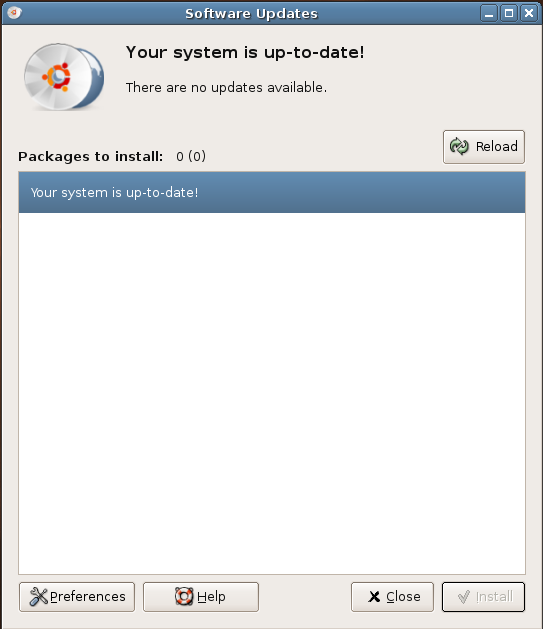
The absolute first thing you need to do after Ubuntu installs is a system update. The update process is painless. Everything is done by the Update Manager, which you can find by going to System>Administration>Update Manager. A window should pop-up asking for the user password, this is normal. The update process is reasonably self-explanatory; select the packages and apply them by clicking Install.

Ubuntu Update Manager

After messing around with Ubuntu enough, there will come a time when you will need root privileges to complete certain tasks in the terminal. This was the case with me, so I opened up a terminal and attempted to do su, but Ubuntu wasn’t having any of it. After some frustration, I set off to find a solution and sure enough Google told me that Ubuntu disables the root account by default. Instead, users must prepend sudo to any administrative task they wish to do.


Installing an Application


The first thing I wanted to do was install my favorite Linux BitTorrent client, Azureus. I searched for it in the Add Application program, but it could not be found in any repository. That means we must find the file off of Sourceforge and install it manually. Go to the download page and download the latest version of Azureus for your linux box. Again, since I am using a G4 powered machine I chose the PPC download. If you are running Ubuntu on an x86 machine, you will likely want the Linux GTK download. Now thankfully Ubuntu already has Java installed which saves a lot of time in installing that. Java installations in Linux are usually fairly advanced as you have to go around and give config files the path to Java. Now that you have an Azureus file on your desktop with a .tar.bz2 extension, we are ready to begin the installation. Open up a terminal; this can be found at Applications>Accessories>Terminal. Type the following lines exactly and your installation should be done quickly.

cd Desktop/
tar xjf Azureus_2.3.0.4_linux.PPC.tar.bz2
sudo mv azureus/ /usr/lib/
cd /usr/lib/azureus
./azureus

Note: Type in the actual name of your Azureus download in the second command. You can also type ls to display your Desktop’s contents or type Azureus and hit tab for tab completion.

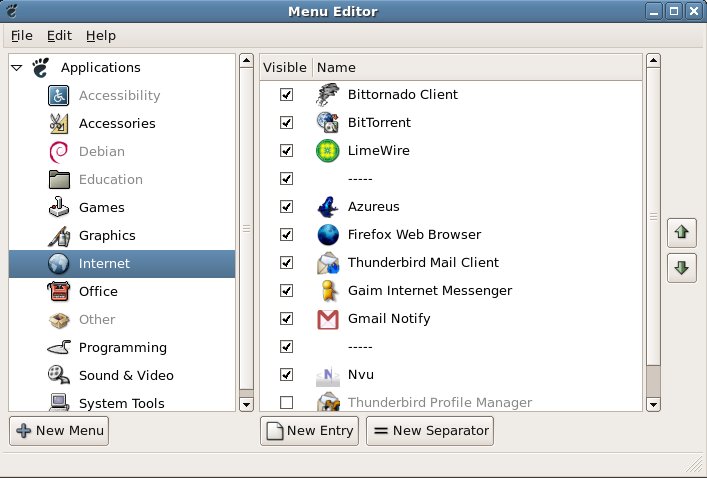
The ./ runs Azureus. This part must work and open up Azureus for us to continue. If it does not go back and make sure you have downloaded and installed the correct Azureus for your system. Now we need to add a shortcut to Azureus in the Applications menu. This makes it a lot easier to access Azureus. Go to Applications>System Tools>Applications Menu Editor and click Internet on the left pane. Click on the New Entry button and fill out the fields.


Menu Editor

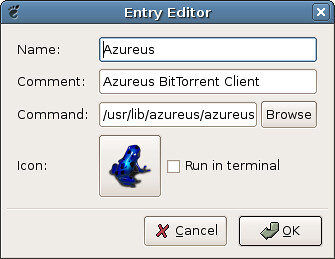
Name: Azureus
Comment: Azureus BitTorrent Client
Command: /usr/lib/azureus/azureus
Icon: Click on “No Icon” and in the file browser that pops up navigate to /usr/lib/azureus and select Azureus.png


Before you click OK everything should look like this. If so, you can now close the Menu Editor. You can now access Azureus going to Applications>Internet>Azureus.
Azureus Entry


If Azureus or any other Java based application isn’t running as expected you will probably want to update to a more recent version of Java such as 1.5. To do that download JRE 5 update 5, keeping in mind this is not for PPC users, and do the following:

sudo apt-get install fakeroot java-package java-common
fakeroot make-jpkg jre-1_5_0_05-linux-i586.bin
sudo dpkg -i sun-j2re1.5_1.5.0+update05_i386.deb
sudo update-alternatives --config java
java -version

To update your Java installation in a PPC based Ubuntu install, please visit this thread over at UbuntuForums.org.


This is the typical method for installing simple applications in Ubuntu, or most other Linux distributions for that matter. However, other distributions with different window managers have unique ways of putting links to applications. For example, in the Blackbox/Fluxbox window manager you must edit a file to include an entry to that application in the right click menu. If you have ever seen the typical method for installing applications on a more complex distribution of Linux you will notice how many things are compiled from source. While compiling from source builds the application around your computer’s individual settings and makes it run more efficiently, it is often too difficult or time consuming for the beginning Linux user. Therefore Ubuntu does not come with a preinstalled compiler such as gcc. If you ever want to gain that functionality you need to execute sudo apt-get install gcc in the terminal. After you do this, if you want to install an application from source usually you extract the file to a folder (tar xjf for .tar.bz2 and tar xzf for .tar.gz) and then run the following commands:

cd /path/to/folder
./configure
make
make install


An Easier Way to Install Programs


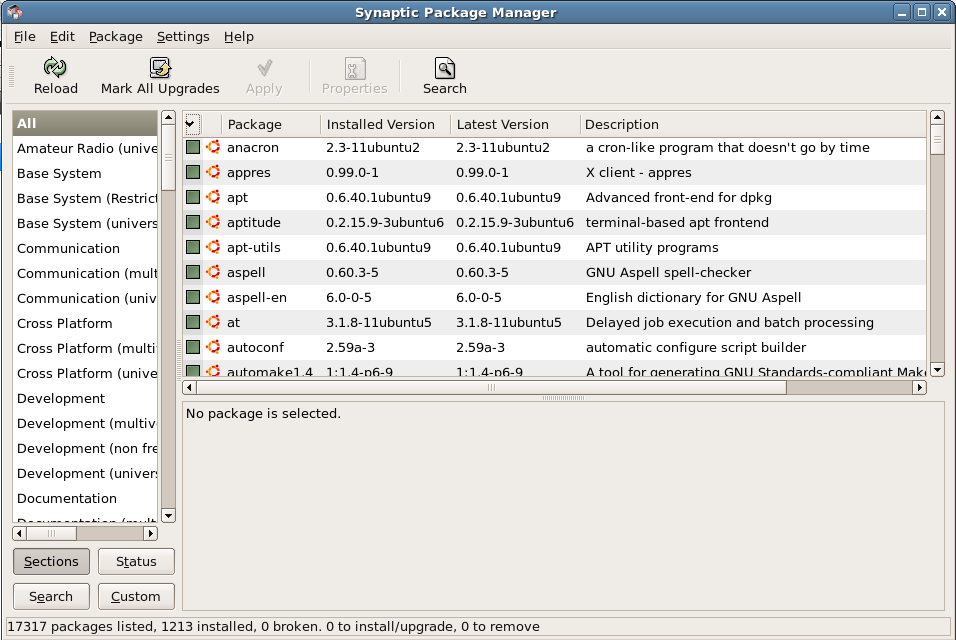
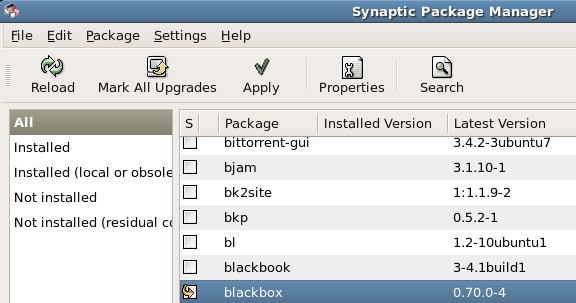
Ubuntu has a great package manager called Synaptic that lets you search for or find applications to install or remove from a list. You can check it out by going to System>Administration>Synaptic Package Manager. You can easily sort packages by category, their installation status, or by searching. If you find a package you want to add click it and select Mark for Installation. Once you’ve selected all the packages you wish to install, remove or upgrade at this time, click the Apply button. It’s as easy as that. However, not every application will be on this list and betas are usually never listed. In those cases you must go out and download the installer elsewhere and install it manually. Such is the case if you want the latest version of Firefox the day it comes out. It might take the repositories a day or two to get the latest versions.

Synaptic Package Manager

Synaptic Package Manager

Synaptic Package Manager

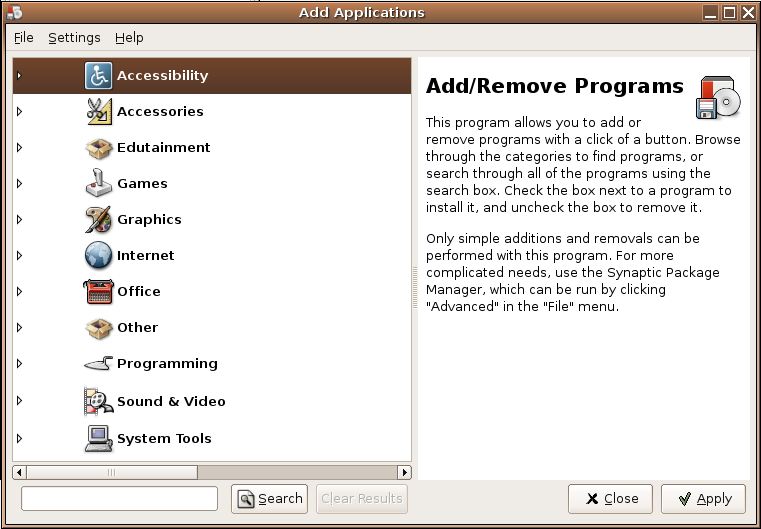
There is also a simpler version of the Synaptic Package Manger aptly-named Add Applications. You can access that via Applications>Add Applications.

Ubuntu Add/Remove Programs


Making Ubuntu More User Friendly


My main gripe with many Linux distributions is the lack of the normal web fonts such as Verdana, Tahoma, etc. This explains why many websites appear differently than how you are used to viewing them. Don’t worry there’s an easy fix I found on UbuntuGuide.org. Open up a terminal and follow along.
sudo apt-get install gsfonts-x11
sudo apt-get install msttcorefonts
sudo fc-cache -f -v
sudo cp /etc/fonts/local.conf /etc/fonts/local.conf_backup
sudo gedit /etc/fonts/local.conf

Paste the text found here in gedit and save. You might have to restart your browser or gnome until the new fonts are used.


Should I Even Bother?


I think it is worth your time to check out Ubuntu if you will be installing it on an x86 or AMD64 computer. However, I recommend staying away from Ubuntu for PowerPC computers. My PPC Ubuntu install has given me mixed results. Most things run spectacular but many applications that I wish to install are not offered in PPC flavors. For example, Azureus runs best with Java 1.5 but Sun Microsystems does not make it for PPC so I’ve had to resort to similar Java packages by IBM and BlackDown, which are a pain to install and buggy at best. And then there is the aforementioned problem with the lack of a decent flash player since Macromedia refuses to support Linux PPC platforms. If you are interested there is a workaround via sudo apt-get install swf-player but it only works half the time and is a CPU hog. RealPlayer is another application that lacks PPC support. For the other 99% of prospective users (not running PPC), Ubuntu is an amazing OS. It’s targeted for ease of use and is one of the few Linux distributions I have touched that can be described as “It just works.”


Things You Should Know


  • The Terminal is your friend. It will scratch your back for you. I suggest putting a launcher to it on the taskbar by right clicking Terminal in Applications>Accessories>Terminal and selecting Add this launcher to panel.
  • Most applications in Ubuntu are stored within /usr/lib/ (the equivalent of C:\Program Files).
  • Linux can only handle one sound stream if your sound driver is not fully supported by ALSA, which I find to be quite often. If you watch a movie and then close the movie player, it is normal for a slew of gAIM sounds to play for a while as that sound stream was cached for later playback. If you are streaming internet radio in Amarok and then open a video in VLC, the sound from Amarok will be heard.
  • If a program ever seizes up, you can force quit it using the killall [program] command. You can view active processes and kill them if necessary via top. Typing k and then the PID of the process you can kill that process. This isn’t always the case, so you many need to do killall -9 [command].
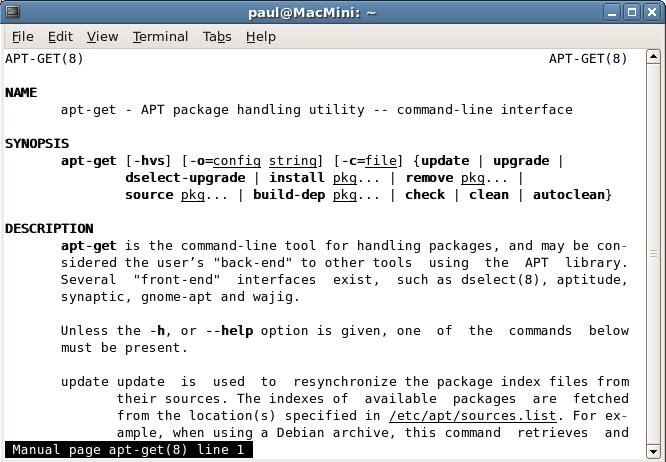
  • The man command can be used before any command you wish to learn about. For example, man apt-get will list the man pages. To exit the man pages and go back to the terminal press q.
  • You can manage system packages via the apt-get command. Here are a few to keep handy…
    sudo apt-get update
    sudo apt-get upgrade
    sudo apt-get install [package name]
    sudo apt-get remove [package name]

    You can search for packages to install via packages.ubuntu.com.

  • pwd tells you what directory you are in (print working directory), cd changes the directory, cd .. goes back up (out) a directory, ls lists the contents of a directory, nano is a simple text editor while more and less are simple text viewers, unzip unzips zip archives, tar is a valuable decompression tool, ./ executes some files (eg., *.sh files), other programs can be accessed by typing their name such as firefox.
  • Here are some more important commands.
  • If you need to switch between Java installations use
    sudo update-alternatives –config java

  • Ubuntu Resources


    Here are some great resources that can answer any of your Ubuntu questions. I know I could not have written this article without consulting them several times.

  • Easy Linux Ubuntu 5.10 Starter Guide
  • Ubuntu People
  • Ubuntu Community
  • UbuntuGuide.org
  • UbuntuForums.org
  • Ubuntu Blog
  • LinuxForums.org
  • LinuxQuestions.org
  • PPCNerds.org

  • PaulStamatiou.com runs on the Thesis Theme for WordPress

    How smart is your Theme?  How good is your support? Check out ThesisTheme for WordPress.

    Thesis is the search engine optimized WordPress theme of choice for serious online publishers. If you’re a blogger who doesn’t understand a lot of PHP, Thesis will give a ton of functionality without having to alter any code. For the advanced, Thesis has incredible customization possibilities via Thesis hooks.

    With so many design options, you can use the template over and over and never have it look like the same site. The theme is robust and flexible enough not only to accommodate a site like PaulStamatiou.com, but also to enable the site to run far more efficiently than it ever has before.

    { 28 trackbacks }

    Firefox
    October 25, 2005 at 2:06 am
    Introspection » Ubuntu for Novices
    October 25, 2005 at 11:50 am
    teknokool.net » links for 2005-10-25
    October 25, 2005 at 4:24 pm
    The Edge of I-Hacked » HOW TO: Ubuntu Linux for Novices

    October 26, 2005 at 1:03 am
    MAKE: Blog
    October 26, 2005 at 4:18 am
    How To: Ubuntu Linux for Novices at Bharath Kumar
    October 26, 2005 at 7:14 pm
    Pig Pen » Ubuntu Linux For Novices - its an adventure
    October 27, 2005 at 3:25 am
    MemoryDump.com » HOW TO: Ubuntu Linux for Novices
    October 27, 2005 at 9:04 am
    tonetheman links » Blog Archive »
    October 28, 2005 at 9:09 pm
    J_K9 @ Linux » Blog Archive » Ubuntu Tutorial
    October 31, 2005 at 5:14 pm
    LUX.ET.UMBRA
    November 12, 2005 at 12:15 am
    Drugi dom » Blog Archive » HOW TO: Ubuntu Linux for Novices
    November 18, 2005 at 7:11 am
    Richie’s Weblog » links for 2005-12-04
    December 5, 2005 at 6:12 am
    writingUp
    January 12, 2006 at 10:33 pm
    HOW TO: Ubuntu Linux for Novices at PaulStamatiou.com
    January 20, 2006 at 12:47 pm
    Lockergnome's Linux Fanatics
    March 5, 2006 at 8:34 pm
    Administer IT » Ubuntu Dapper Release June 1!!
    June 12, 2006 at 10:37 am
    Tyrants & Tax Collectors » Blog Archive » links for 2006-07-07
    July 7, 2006 at 1:36 am
    Attack of the Rob Bot! - proof that I use the internet » links for 2006-08-18
    August 18, 2006 at 1:10 pm
    JRB Technology
    September 19, 2006 at 9:17 am
    Finally plunged into Ubuntu - Feisty « an occasional interruption
    May 21, 2007 at 2:46 pm
    A Huge List of Freeware | dyohanan.com
    November 14, 2007 at 10:40 am
    Linux - Why Ubuntu Got It All Wrong - Linux Forums | Broad Help
    November 16, 2007 at 6:54 am
    Linux - HOW TO: Ubuntu Linux for Novices - PaulStamatiou.com | Broad Help
    November 18, 2007 at 9:06 am
    Linux - HOW TO: Ubuntu Linux for Novices - PaulStamatiou.com | Broad Help
    November 18, 2007 at 6:30 pm
    Demon's New Application Thread [Freeware] - NetworkTemple - (NT) -
    February 9, 2008 at 2:41 pm
    Hi, I’m Dean! And you are? » Blog Archive » First Impressions: Ubuntu Linux
    June 3, 2008 at 4:33 am
    Rare Websites for freeware useful utilities Downloads - Lazydesis
    September 19, 2008 at 3:08 am

    { 73 comments… read them below or add one }

    1 bman October 25, 2005 at 12:54 am

    nice man. thanks. i love the look of this GUI.

    Reply

    2 Ahmed October 25, 2005 at 4:58 am

    Excellent guide mate – up until now i’ve been using SuSE (the n00bs linux), although i think you’ve managed to convince me to switch over to Ubuntu. Debian based distro’s for the win!

    Reply

    3 aiko October 25, 2005 at 6:11 am

    An even easier way to install software is Klik. http://klik.atekon.de

    Reply

    4 John Lambrechts October 25, 2005 at 7:38 am

    Please contact the doc team with this piece of documentation!

    irc.freenode.net
    #ubuntu-doc

    http://wiki.ubuntu.com/DocumentationTeam

    Good work, please become involved in ubuntu!

    Reply

    5 Rick G October 25, 2005 at 9:07 am

    Thanks for an informative article. Now maybe I’ll be able to successfully use apt-get to install something! Of course, it is WAY easy to use Synaptic.

    I tried ubuntu, which uses the Gnome desktop. If you’ve played with Knoppix before, you may like Kubuntu better – it uses the KDE desktop:
    http://releases.ubuntu.com/kubuntu/hoary/

    Reply

    6 Bill_G October 25, 2005 at 10:07 am

    Excellent piece. I’ve a fair amount of experience with Ubuntu on Intel, and agree with your conclusion re: running it on a PPC.

    That said, I did try it on a similar Mini plus Firewire HD here, except I put Ubuntu on the internal disk. The install was the same as an Intel install, but the script generated to guide the bootloader (yaboot) failed to correctly identify the boot partition. Since the install completes only after a reboot, my install failed. After some Googling, I started over, shelled out of the install just before that first reboot, manually correct yaboot’s config file, and the install completed successfully.

    Needless to say, normal people shouldn’t need to go through that.

    On another point, I’m curious if you’re finding OS X on the Firewire drive is faster than on the Mini’s internal drive.

    Reply

    7 Kyle October 25, 2005 at 10:07 am

    Hey, thanks for the tip on the Firefox font thing. I always kinda hated how the fonts looked but never really put a lot of effort into finding a fix. I stumbled upon it here and it worked. Thanks!

    Reply

    8 Ron October 25, 2005 at 10:31 am

    Heres a simple question.
    Why would you install Linux over OSX?

    Reply

    9 Ohad Lutzky October 25, 2005 at 11:05 am

    “Linux can only handle one sound stream…”
    Not true! Using dmix allows you to have multiple simultaneous sound streams, as you would in any other OS. Unfortunately, Ubuntu is not configured to use dmix by default. Enabling dmix is a matter of making some additions to /etc/asound.conf.

    Reply

    10 Matt Arnold October 25, 2005 at 11:22 am

    Paul, thanks for this helpful article. One other thing you should mention is how to add the Universe repositories to show up in the Package Manager. This is the sort of thing a novice such as myself immediately needs to do after installing and upgrading Ubuntu. The Universe repositories are full of codecs for proprietary media formats and other essentials of the desktop experience. For political reasons, Linux is not allowed to include them by default and so they go in “the unofficial stuff in the Universe outside.”

    Reply

    11 israel October 25, 2005 at 12:26 pm

    Nice tutorial. Keep doing this kind of stuff.
    Kind Regards.
    Israel.

    Reply

    12 Matthew October 25, 2005 at 12:27 pm

    “If a program ever seizes up, you can force quit it using the killall [program] command. You can view active processes and kill them if necessary via top. Typing k and then the PID of the process you can kill that process.”

    If you push the X button on a window and it does not close, Ubuntu is set up to pop up a box that offers to kill the program. No UNIX magic is needed.

    Reply

    13 loyd October 25, 2005 at 1:25 pm

    Awesome HOWTO! Thanks.

    Reply

    14 Paul Stamatiou October 25, 2005 at 2:43 pm

    Ron: OS X was a little slow on my Mac Mini. Even though I had upgraded everything in it and even overclocked it, switching tabs in Safari or Firefox would take a second or so… scrolling was a nightmare as well. There’s none of that in Ubuntu.

    Reply

    15 Paul Stamatiou October 25, 2005 at 5:24 pm

    Matthew: I’ve noticed that as well, but there have been times when an application was still running and not visible which is when I use the terminal commands. I once had Thunderbird crashed and running in the background using lots of CPU.

    Reply

    16 Miguel October 25, 2005 at 6:21 pm

    Great guide, thanks!!!!!

    Reply

    17 drguitarum2005 October 25, 2005 at 11:13 pm

    For those of you who are not quite convinced, you can easily download the LiveCD from the Ubuntu website and run that. It runs completely off of a CD-R and does not touch your hard drive at all. You will be able to check out its features and see if it works for you. I have NEVER gotten my wifi (Intel Pro 2200 b/g) to work in Linux (suse 9.1, 9.2, 9.3, 10.0, Gentoo, Redhat, debian, Knoppix) and it worked with no configuration with Ubuntu. Rock on! My AIM screenname is my name on here if you have a question.

    Reply

    18 Konstantinos October 26, 2005 at 9:26 am

    Good one.

    I see a “Part 2″ coming in the near future that covers, among other things:
    - dmix, for multiple simultaneous sound streams (#)
    - adding the Universe repositories to show up in the Package Manager (#)

    Reply

    19 Alex October 26, 2005 at 2:40 pm

    I’m running Ubuntu as well, and there are two projects out there that aim to automate the process of getting a fully funtional desktop going, with media players, peer to peer software, etc, all configured and running after running the scripts. They aim to get things that might be a bit confusing for the new Linux user up and running, painlessly. They are:

    Automatix: http://ubuntuforums.org/showthread.php?t=66563
    Easy Ubuntu: http://www.ubuntuforums.org/showthread.php?t=64629

    I must say, I’ve been very impressed with Ubuntu. I’ve tried almost every Linux distro over the last 3 years, and this one has by far been the one that “just works” the best.

    Reply

    20 MystaMax October 26, 2005 at 4:05 pm

    Very Nice. I’ve used LiveCDs for this distro. Now I’m gonna install it as a 2nd OS, and get to know Ubuntu/Linux a lil better! Thanks again!

    Reply

    21 fafnir October 26, 2005 at 5:59 pm

    Tried installing on an ibook g3 700 that I have. The install seemed to go smoothly, but it makes me change the password each time I log in and I get a “Child terminated with 1 status” every time I try to do anything administration related. Perhaps I am not ready for Linux yet :-) It is not exactly plug and play yet.

    Reply

    22 Teri Pittman October 27, 2005 at 2:22 am

    I’m running on a G3. I’ve been hacking around with linux on both PCs & Macs and have never gotten a distro to correctly handle my dialup modem. Until Ubuntu. It not only recognized it, it dialed out on it.

    It was a little tricky to do the install, as you must install OS 9 & bootx on old world machines. But I figured it out and wrote up the notes in case I have to do it again. The only other problem I’ve had is with the bonobo application server error, which seems to be caused when the clock is reset.

    I love ubuntu. OS 10.2 has been a nightmare on this older mac. I’m much happier using jpilot for my Palm too–no more sync problems and outdated pim. I’d recommend that you give it a try if you want to get a little more life out of that older Mac.

    Reply

    23 Paul Stamatiou October 27, 2005 at 2:54 am

    Teri: That’s great to hear! Ubuntu is bundled with lots of drivers, which is great even if that doesn’t leave enough room for a GUI installer.

    Reply

    24 David Huff October 28, 2005 at 2:25 pm

    The last time I tried:

    sudo apt-get install msttcorefonts

    it complained – said there was no such package. Did you have to add to your /etc/apt/sources.list to make this work ?

    Reply

    25 Paul Stamatiou October 28, 2005 at 4:11 pm

    David: No, I didn’t have to add anything to make that work. However, I think I may have messed around with my sources previously. Try to follow this and add the Universe repositories. Hope that helps.

    Reply

    26 Ben Vassie November 3, 2005 at 4:57 am

    Nice article

    BTW, here is a deb I found of Azureus

    http://195.153.177.76/upload/ben/ubuntu/azureus_2.3.0.4-1_all.deb

    Make sure you run sudo apt-get upgrade after to resolve all dependencies

    Also, you can find Java 1.5 here http://wiki.ubuntu-fr.org/doc/plf, along with some other goodies (w32codecs)

    After installing Java, run sudo update-alternatives –config java

    Hope this helps

    Ben

    Reply

    27 Ravnos November 20, 2005 at 7:24 pm

    Ben: Just fyi, the w32codecs package ONLY works on i386. I found an article (http://www.warpedsystems.sk.ca/staticpages/index.php/20040114204040195) by a guy who got it to work on Mandrake AMD64, but I’m not familiar enough with the internals of the .deb package format to try a similar hack.

    If anyone DOES know how, though, it would sure be nice to know. As an AMD64 user, I’d sure appreciate it.

    Reply

    28 adi wahyu December 19, 2005 at 5:40 am

    Thanks a lot. This helps me a lot. ;-)

    Reply

    29 sh December 23, 2005 at 9:36 am

    probably a good idea to run:
    sudo apt-get install build-essential

    Reply

    30 Warren January 14, 2006 at 7:29 pm

    I have the Ubuntu CD but have not installed it as yet. Your explanation on installation seems simple enough for even me. So my question is . . . suppose all I want to do is wordprocessing, internet, simple database stuff, looking at planatarium software, maybe a drawing program, looking at photos. Can’t you just install Ubuntu and add the other stuff by downloading from a CD. In other words as little or no programing?
    Thanks for this excellent site.
    Warren

    Reply

    31 Paul Stamatiou January 14, 2006 at 7:36 pm

    Yup.

    Reply

    32 Mark Evili - Ubuntu Lover January 19, 2006 at 2:54 am

    Ive been using ubuntu for a while now and I can say for certain that this tutorial will help quite a few people. Thanks and good work.

    Reply

    33 Dave January 27, 2006 at 7:56 am

    Very informative! Thanks

    Reply

    34 tathagata dasgupta January 30, 2006 at 11:42 pm

    Excellent work …. this write up is the best one on Ubuntu I have come across after I started with it. Hopefully you have been linked from quite a good number of pages already …. you really deserve that …I’m glad to linking you as a very helpful link
    And I sooo much like the cool design of your page.Keep up the good job buddy

    Reply

    35 Daniel February 2, 2006 at 5:51 am

    Great tutorial.
    I`m new in Ubuntu and linux and i`m having some problems to understand it.
    Tks

    Reply

    36 etch February 4, 2006 at 12:50 pm

    Hey fellows!!!!!

    First I would like to commend paul on such easy to read experience. I am a first time linux user and have read many forums for beginners…yours is by far straight forward and simple to understand.

    I have been wanting to try linux for sometime now…but have been very reluctant because of the involvement with the terminal. I first tested the live cd version of hoary hedgehog and was blown away. I simply loved it, but there were a few problems I had hoping someone could help a beginner with in simple terms. I really like ubuntu and willing to give it a shot if I can find to configure the internet

    I understand that apple has not released the source for its modems….but can still use them with ubuntu? The system profiler calls this a MicroDash modem (v92). I’ve tried using pppconfig to set up my connection but nothing happens when I “pon provider” or “sudo pon provider” just drops down to the next command prompt. Do I need to compile a driver for the modem?? If so how can I go about this (simply put if possible). I hear there is one available from linuxant.com.

    I also have heard of native airport extreme drivers for linux…if someone could simply explain how I could accomplish this or direct me to a easy how to would be much appreciated!!!

    Thanks all in advance……. :)

    (a struggling newbie)

    Reply

    37 etch February 6, 2006 at 9:44 am

    In reference to previous post…..I don’t believe I mentioned, I’m working with a 1Ghz iBook G4 ppc.
    Thanks again all.

    Reply

    38 Phil February 13, 2006 at 11:55 am

    Great tutorial, I found the Azureus section very useful!

    Cheers.

    Reply

    39 Louis February 24, 2006 at 11:41 am

    For one, ubuntu can user “su” instead of “su -” . Don’t ever try that. ROOT may be disabled, but you can still get to it by using su. Any command that I see saying “sudo apt-get ” etc, I always log in to root first.

    Reply

    40 Christopher Arbeiter February 27, 2006 at 7:30 am

    Hi Paul,

    Great site, very informative. Thanks for posting your knowledge to everyone.

    Christopher

    Reply

    41 BRPocock March 29, 2006 at 10:40 pm

    Couple of quick notes…

    If this is really meant for “Novice” users… Never open a terminal! :-) Terminals are for advanced users. It’s possible to hurt yourself in there in much harsher ways than the GUI.

    Also, on the topic of “killing” processes: Applications/System Tools/System Monitor lists all processes and has “End Process” and (on the right-click menu) “Kill Process” functions.

    Regarding AirPort Extreme drivers, of course the Broadcom (APE) drivers “bcm43xx” are now included in Fedora and Ubuntu alike. The installation will require an expert user’s assistance to copy the “firmware file” from your MacOS or Windows CD-ROM into a special file location to make the drivers work.

    Reply

    42 Ken Savage March 31, 2006 at 1:19 am

    I love the new way to isntall programs. Let’s people ease into Ubuntu and Linux.

    Reply

    43 kengel April 11, 2006 at 2:08 pm

    Hi,

    the ubuntu is actually really nice-looking and actually the best Linux distribution I installed so far. But like all other linux distributions it is still a bit on the puzzling side and therefore I deleted it again… However, this tutorial is great but for me it misses out three important things that I simply cannot figure out:
    - how can you remove Linux without having to format all of your (Windows/OSX) system and/or messing around with the Master Boot Record?
    - Linux pretty aggressive as well as it will always appear in first place in the Grub Bootorder and you basically have to be very attentive to NOT boot linux (if you dont want to) . How (if) can you change the boot order in Grub?
    - how do you establish a dialup internet connection?

    But again, GREAT WORK!!

    Kengel

    Reply

    44 Michael Killian April 16, 2006 at 4:44 pm

    its very simple!
    read the Ubuntu desktop guide on your computer:
    (menu)system > help > system documentation > configuring your system > partitions and booting > change default OS at boot (4.2.5)
    You just have to cut and paste something in a specific text file…

    good luck!

    Reply

    45 Harry April 24, 2006 at 9:13 am

    um you’ll all probably accuse me of blaspheming, but how do i REMOVE linux from my mac? i installed it didn’t like it and its now kinda messing up OSX, please help me

    Reply

    46 James April 27, 2006 at 1:53 am

    How do i delete ubuntu linux of my imac g3? i purchased my mac from a charity and it came with linux installed. I hate linux dont get me wrong i love the idea its just not very user friendly.
    Ive tried doing the usual hold c button on the bootup so to boot up on cd rom but i dont think the rom was installed properly or at all.
    Someone please help i want to use my mac
    Thanks
    James
    jconservices@yahoo.com

    Reply

    47 Max April 29, 2006 at 4:24 am

    Hi Experts…

    I’m absolute beginner in ubuntu Linux Programme. I’ve just installed it in server mode.

    How I’d be able to start / configure GNOME? What’d be the command line / parameters in order to access GNOME GUI?

    Thanking you…

    Reply

    48 YI May 12, 2006 at 12:52 pm

    I may give it a try, although the last time I installed a linux distro was a complete disaster.

    Reply

    49 Bill Starnes August 3, 2006 at 10:52 am

    Paul,
    Being a newbie, this may sound like a dumb question, so feel free to e-mail the answer to me.
    In any case, I noticed that you mentioned that the root account is disabled by default in Unbuntu. How do you enable the account and set the password.

    Thanks in advance,
    Bill Starnes

    Reply

    50 Dobrivoj from Seria October 19, 2006 at 7:03 pm

    I have one question.I’m new in Linux.I’m using Windows for now but I have Linux Ubuntu CD and I want to install on my computer.If someone can explain me how to install drivers for sound card,graphic card,modem(dial-up),chipset and monitor.I have all drivers downloaded from internet I just don’t know how to install them my adress is devil_dox@hotmail.com .You can send me on this adress the guide for install.Thanks

    Reply

    51 AleAle October 30, 2006 at 2:34 pm

    I have been using linux for two days:
    Great system, it’s a pity that today I can’t do any Administrative operations.
    The Administrator password windows don’t appeare…What can I do?

    Reply

    52 Ubuntu Tutorials December 3, 2006 at 7:18 pm

    Nice post, thanks. Thank you for joining the battle of educating people about Ubuntu. It doens’t have to be difficult to use–and it isn’t–its just a matter of getting used to a different way of doing things.

    You might want to check out some other tutorials at http://christer.homeip.net

    Reply

    53 blueturtle December 19, 2006 at 4:14 am

    Thank you so much for this info. I have spent the last four days going round in circles just trying to install a program. I was about to give up and return to Windows, where at least I knew what I was doing. I really wanted to give Ubuntu (my first Linux installation) a try but it has been so frustrating up to this point. My software is now installed and the journey continues…

    Reply

    54 Craig B February 16, 2007 at 4:07 pm

    I’m having major problems installing to my Mac PPC (I know you say don’t but I want to try!).

    Whenever I try to boot I just get a white screen and thats it.

    Can anybody give advice/ help.

    Thanks

    Craig

    Reply

    55 nick spanich June 19, 2007 at 4:33 pm

    Nice man. What is it better to run dual with windows or a mac? and a cool thing to add t your guide is commands when working as root. like in the shell. but be carefull when puuting commands because pweople who know how to hack like me( I do it lelgaly tho) will then use it to get things.

    Reply

    56 clengcleng August 1, 2007 at 6:27 pm

    Just bought a new pc with AMD 64 processor, can i install it with Ubuntu 6.0?? anyway, this site is cool!!

    Reply

    57 Paul Stamatiou August 2, 2007 at 12:06 am

    @clengcleng – yes you can

    Reply

    58 jason September 1, 2007 at 5:02 am

    hi all i have had ubuntu for a week now and i now dont like windows ubuntu could not be any easier to use lol and i am a complete novice at it but muck about wa it but over time ill get the hang of the kernel and the the terminal rather than use graphics lol

    Reply

    59 Hhaus September 3, 2007 at 3:28 pm

    after Ubuntu I finally eliminated MS Windows. I will no longer have to rebuild every month or two. Thanks for your help here.

    Reply

    60 Ravi Jonnal September 10, 2007 at 11:10 pm

    Nice tutorial. Generally, though, applications should be stored in

    /usr/bin

    or

    /usr/local/bin

    rather than

    /usr/lib

    -Ravi

    Reply

    61 chris September 12, 2007 at 12:09 pm

    I have a compaq 2100 that runs great with linux(ubuntu), and horribly with windows xp. I’d like to permanently use ubuntu (i have the latest version) , but i can’t get my wireless card (a run of the mill linksys wpc54g) to work. A friend suggested ndiswrapper. I’ve got the drivers saved on a usb stick…where can i get ndiswrapper and any (hopefully simple) instructions on how to install on ubuntu??

    Reply

    62 Gebura October 5, 2007 at 12:33 am

    Hi, thanks for this cool tutorial!
    The link http://ubuntuguide.org/sample/local.conf_extrafonts is down, do you have any other url? I googled and find nothing but a file for Ubuntu 5.04 in http://ubuntu.or.kr/ubuntu5.04/sample/local.conf_extrafonts … will it work with Feisty? thanks,

    Reply

    63 tony Mwangi October 11, 2007 at 1:29 pm

    great help, thanks alot.

    Reply

    64 Adrian November 8, 2007 at 11:01 pm

    Some Easy Video Tutorials and How-Tos for making our life with Ubuntu easy.
    ( http://www.easyhowto.eu)
    You can write any request you have on a video tutorial that you may find yourself in need of.

    Reply

    65 Geek Girl November 13, 2007 at 11:33 pm

    Good start guide. Props!

    Reply

    66 argh May 17, 2008 at 9:07 am

    my mac died and i didn’t have the money for a new one. only for a pc, but i can’t stand windows (every single build, not just vista). sadly my trial at a hackintosh was a disaster… linux was always a tempting option but i was afraid i didn’t have the mad computing skills to do it. now running a dual boot windows xp / ubuntu compiz, thnaks to guides as this one here. great work, thanks a lot!

    Reply

    67 Duane Foote May 22, 2008 at 12:10 pm

    How can a get on the internet using UMBUTU via a telephone modem?
    Simple straight forward please.

    Reply

    68 Duane Foote May 22, 2008 at 12:10 pm

    How can a get on the internet using UBUNTU via a telephone modem?
    Simple straight forward please.

    Reply

    69 Maggy June 28, 2008 at 5:14 am

    In the 70’s I got permission to use a CP/M computer in a museum. Right next to it were several heavy books, explaining absolutely every detail of the hardware, operating system and software.While other kids went to the disco, I spent hours and hours to understand registers, flags, base addresses, piping files and so on. Years later I bought my first IBM PC (not an XT, 16 KB memory, 5 slots, one single sided floppy). It came with similar heavy books, Intel 8086 Asm, Basic, IBM DOS and the hardware manual.In 1989 I started my own computer company, my clients soon came with problems in GEM, Windows, GEOS, OS9, Novell and so on. Until 1995 I was able to help them all. Had to sell the company because of health reasons.

    Now I’m fully back to phase 1, just using a computer for fun. And to be honest, Windows has made me a bit lazy. I hardly ever type in a command, even start regedit with a single click. Haven’t written any ASM code in years, actually hardly any code at all apart from some Python, Ruby and for my PDA some Mortscript.

    Last year I stumbled upon several university project with very interesting Linux software. I tried out several Linux releases, a.o. Ubuntu. And I fell back in phase 0, when I was still a total computer illiterate. On all my questions Google gave me a zillion hits, most of which to advanced Linux users sites, presuming that the basic knowledge I was trying to find should already be available in my own head.

    I registered in several forums, a.o. the official Ubuntu forum. And what I found was arrogance and hostility against Windows users.The most helpful answers I received came down to “use Google” and “don’t expect wizards to do the installation for you”.

    I’m sorry to say that I’m surprised that so many people give very positive comments on this how-to-ubuntu-linux-for-novices. I do not doubt that everything written here is correct. But I can’t find much explanation. What does “tar xjf” mean, or “sudo mv”?

    I hope that one day I’ll finally find a Linux tutorial for novices that actually helps me to get rid of Windows. Sorry, this isn’t it for me.

    Reply

    70 Duane Foote June 29, 2008 at 11:32 am

    I still have no answer on how to use telephone modem with ubuntu. Does anyone know how? I cannot get DSL or any fast hookup except satelite where I live. I have run ubuntu from the installation CD and like what I can run without internet connection.

    Reply

    71 jim April 15, 2009 at 10:19 pm

    excellent article even with the comments with corrections. also thank for the links. as a new linux user this will be very helpful.

    Reply

    72 b3n May 31, 2009 at 8:50 am

    nice, very informative. one thing
    the “Making Ubuntu More User Friendly” part, the “text found here” link didnt work 4 me. 404 error

    Reply

    73 Riyadh July 3, 2009 at 8:56 am

    really a good, but not a complete, guide for novices

    Reply

    Leave a Comment

    You can use these HTML tags and attributes: <a href="" title=""> <abbr title=""> <acronym title=""> <b> <blockquote cite=""> <cite> <code> <del datetime=""> <em> <i> <q cite=""> <strike> <strong>

    Previous post:

    Next post: