HOW TO: Make a Torrent with Azureus

January 4, 2006 · 39 comments

This guide is a follow up to my series of Azureus articles that dealt with configuring and setting up the popular BitTorrent client. Now, I will discuss how you can share any file by creating and seeding a torrent. There are a number of reasons why using a torrent is more viable than simply serving the file yourself. Bandwidth costs will pretty much be eliminated as users individually serve pieces of the file themselves. Azureus will aid us in creating the torrent due to its compatibility with many different operating systems.

I will create a torrent of a folder of wallpaper images, but the process is the same regardless of file types. You first want to group all of your files together in a folder and archive them. Of course, you don’t have to archive them but it will boost things up a bit with the smaller size. You can use WinZip, WinRAR or whatever your favorite archiving utility happens to be to compress your files to a zip or rar file, your preference.

Setting up the Tracker

All torrents use a tracker that tells each client or user where it can find other users with pieces of the file they are looking for to establish a successful connection. In this case your computer will serve as the tracker. Navigate to Azureus » Preferences if you are using a Mac or Tools » Options on PC/Linux. Now go to Tracker » Server. You will need to provide Azureus with your external IP address so that it can include this in the torrent file so other torrent clients know where to connect to.

Tracker Server Preferences

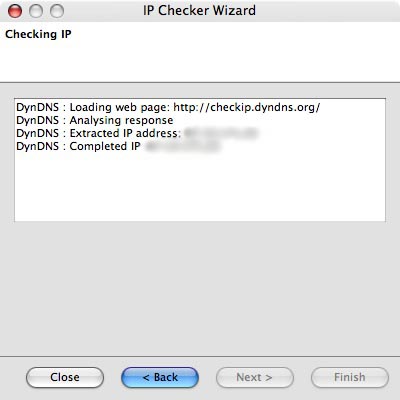
Don’t know your IP address? Don’t worry, Azureus has a nifty feature that will auto-discover your IP address. Just click the Auto-discover external IP address button next to the Tracker external IP address field. The IP Checker wizard will pop up. Select a service (any works) and click Finish and then Close The Tracker external IP address field will now have your IP address in it. Select Enable tracker on HTTP port and Force hosted external torrents to default port. Azureus’ default settings for everything else in the Tracker Server options should be just fine, so click Save. If you are behind a firewall and/or have a dynamic IP (one that your ISP changes every so often) you will need to take a few extra steps. The Azureus wiki has several entries that can help you out if you fall in that category. This post helps you set up Azureus for a dynamic IP and this one for router configuration. However, PortFoward.com has a much more comprehensive list. When you browse those tutorials, you want to open up an HTTP port for your tracker. By default this is port 6969.
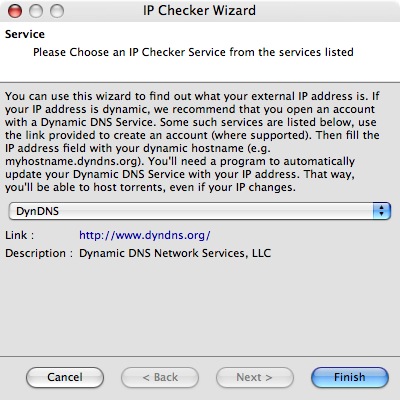
IP Checker
IP Checker

Creating the Torrent

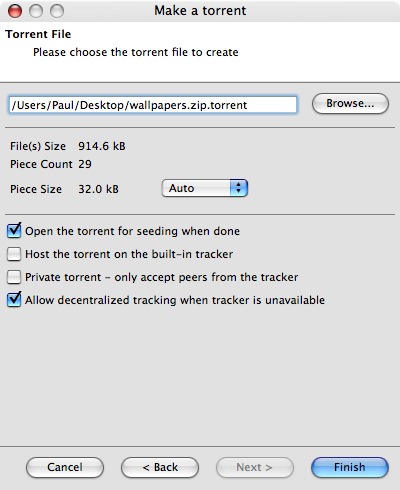
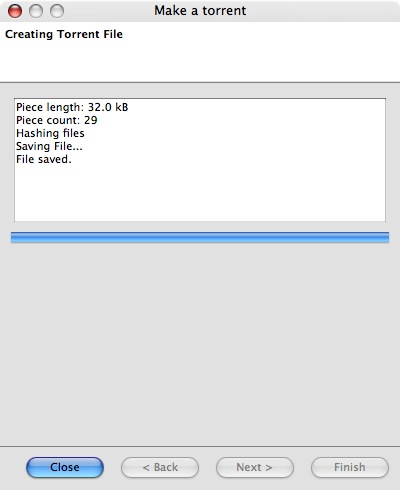
Now that the hard part is mainly over, we need to actually create the torrent file that you will distribute. In Azureus, go to File » New Torrent. The Make a Torrent wizard will appear. Make sure single file is selected and click Next >. Browse and select the file you wish to share via the torrent. We already created an archived file for this earlier. Once you have chosen the file, click Next >. The last page of the torrent wizard asks you where you want to put the torrent file it will create. I opted for my desktop, but it really doesn’t matter. Just remember where the file gets created. Before clicking Finish, check Open the torrent for seeding when done and Allow decentralized tracking when tracker is unavailable. Azureus will do some file hashing and then save the torrent file where you told it to. You can now close the wizard.
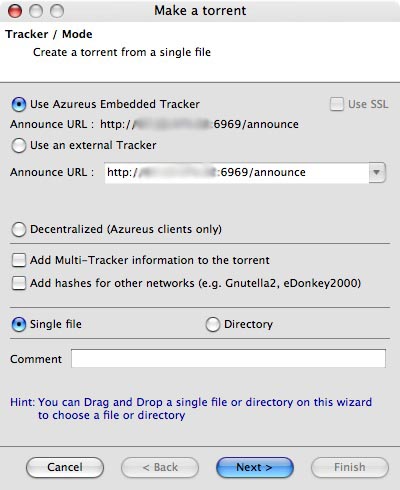
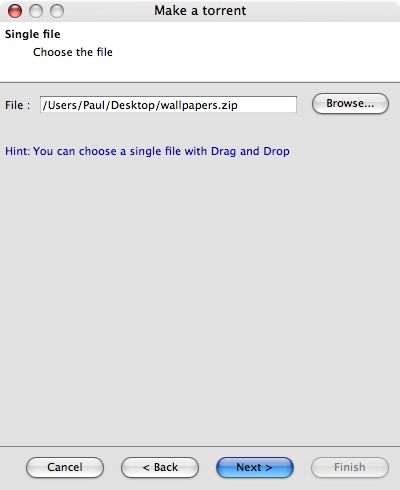
Make a Torrent Wizard

Distributing the torrent

Torrent file created!If you followed the above steps properly, Azureus should now be seeding your file and have created a torrent file. Now you need to give people your torrent file. There are a number of ways to go about doing this. You can submit it to large torrent sites or to your small group of friends via AIM or email. I created this tutorial with setting up a torrent for a small group of people in mind. If you wanted to create a torrent that will be servicing thousands of people you probably wouldn’t use your personal IP as the tracker announce URL and you would likely use an external tracking service. That being said, attach the torrent file to emails, put it on your blog, host it on your site and give everyone the link, etcetera.

Seeding Your Torrent

Seeding

We have come to the absolute most important part regarding torrent creation, seeding. No one will get your file if you don’t properly seed the torrent. Seeding refers to you uploading the file to the peers or users of your torrent. Therefore, you want to make sure you do not have a limit on your upload speed. Keep your computer on for several days (depending on how many people will be using the torrent) to ensure that the torrent gets seeded. Otherwise, you might leave several people with the file only partially downloaded – a big pet peeve of all torrent users. If you have ever downloaded something only to notice the seeder drop out when you have downloaded 99% of the file, you know what I’m talking about. Ideally, you want other torrent users to take up the role of seeding the file.

Torrent Resources

Below are some websites that offer excellent information when it comes to using BitTorrent and Azureus. If you think I should add a particular site, drop a comment on the way out. I spat this article out in one sitting so please let me know if I made a mistake somewhere.

»  Azureus User Guide on SourceForge
»  Azureus Wiki
»  PortForward.com
»  BitTorrents 101 at About.com

{ 10 trackbacks }

Lifehacker
January 5, 2006 at 12:02 pm
Dave’s Chalkboard » HOW TO: Make a Torrent with Azureus
January 5, 2006 at 1:13 pm
Feature Extraction » Blog Archive » Untitled
January 5, 2006 at 3:38 pm
How To: Make a Torrent with Azureus at Bharath Kumar
January 5, 2006 at 10:33 pm
theory.isthereason » Today’s Links: How to prevent Blog Pollution
January 6, 2006 at 4:37 pm
Article and Articles » HOW TO: Make a Torrent with Azureus
January 7, 2006 at 12:08 am
Bharath Kumar
February 26, 2006 at 10:07 am
torrenti
March 3, 2006 at 5:31 am
Like Your Work » Blog Archive » links for 2006-05-01
April 30, 2006 at 7:21 pm
UbuntuOS
October 30, 2006 at 5:02 am

{ 29 comments… read them below or add one }

1 viperteq January 4, 2006 at 3:19 pm

Great tut. I get your feed thru NetNewWire Lite, so that’s how I came to the site. Anyway, I use Azureus and I’ll definitely be emplementing your others tuts for my personal experimentation. Side note: I develop websites and am currently in the process of learning more higher level languages such as PHP. But I’m interested in learning how to develop Apps for OS X and since I’m a little old for going back to college, I was wondering if you wouldn’t mind writing a series of articles on learning how to program and programming for OS X specifically. I know that there has to be hundreds of other people that would be interested in jsut such a series. Thanks!

Reply   More from author

2 Paul Stamatiou January 4, 2006 at 3:30 pm

Thanks for the suggestions. I’m not quite at the point of developing for OS X, so I don’t think I’d be able to make any articles like that just yet. But I’ll keep it in mind.

Reply   More from author

3 viperteq January 4, 2006 at 3:40 pm

Well, I’m sure that everyone would still love to a series on programming in general. Who can’t appreciate your witty humour and straight forward style?

Reply   More from author

4 titanium_geek January 5, 2006 at 2:02 pm

I agree on viperteq’s comments- you have a great writing style, it is really easy to follow your howto’s. There is also comic relief, which means that the articles are not a chore to read.

Congrats on being lifehackerd!

Reply   More from author

5 Paul Stamatiou January 5, 2006 at 2:37 pm

I recently found out about a service called Prodigem from Gary that seeds and hosts torrents for free all that’s needed is filling out a simple form.

Reply   More from author

6 Melanie January 30, 2006 at 1:04 pm

Hi,
Thanks for the tut which got me starting on azureus.
I Have one question though that I think might interest all those who seek to defuse files on this program, specially when seeking to difuse a specific one.
While downloading I would like to privilege one specific file in my source menu but don’t know how.
Maybe this has nothing to do with this tut but al the same thanks and keep writting.
Mel
Ps: Sorry for my english I m french

Reply   More from author

7 didy March 26, 2006 at 3:52 pm

i would like to make a torrent

Reply

8 Runt March 31, 2006 at 4:51 am

So I started the tutorial hoping to be able to share some of my ast amount of albums. Alas got stuck n the first paragraph. When I went to, Tracker, then, Server, I recieved this message “This section is intended for Intermediate use or higher. It is not availible in beginner mode.” WTF? Did I download some oddity? Anyways if you could help I would appreciate it greatly.

Reply

9 Weimaraner March 31, 2006 at 3:27 pm

I created a torrent as you described, all works perfectly until seeding starts. The message displayed is “error – torrent unauthorised”. What can be the problem?

Reply

10 pipis April 17, 2006 at 1:28 am

I post a torrent in a site, how can I seed my torrent with azureus?

Reply

11 Anni May 15, 2006 at 11:50 am

Hi! i did everything you said, and when it comes to seeding, i get “torrent unauthorised”. What do i do?

Reply

12 vaishali May 25, 2006 at 7:03 am

I created a torrent as you described, all works perfectly until seeding starts. The message displayed is “error – torrent unauthorised”. What can be the problem?
how can I upload the torrent file?

Reply

13 Aoshi May 26, 2006 at 12:13 am

I also recieved the same error when trying to seed, does anyone know of a way to fix this ?

Reply

14 Abhijeet May 30, 2006 at 4:04 pm

All those who are having those “torrent unauthorised” problems, this might help. There are certain trackers which will allow you to use their trackers only if you are registered at their site i.e. have a login ID and password at their site. And registration is usually, if not always, free.

This doesn’t mean that you have to register at one of those sites to upload your torrents. There are many free / public trackers available which will let you use their tracker service without registering. A google search for “public trackers” will most likely solve your problem.
And it is courteous to upload your torrents to these sites also if you are using their tracker service.

Reply   More from author

15 Daniel June 16, 2006 at 10:56 am

I followed the tutorial carefully and it worked. I would like to know how to use an external tracker service. It is obvious how to add it from the wizzard, but do you just find one on the internet or something? Which ones are best?

Like you said at the end, you probably wouldn’t use your own IP to do this if you want to upload to lots of people, but I think that’s what most people will want to do, most people don’t leave their PCs on all the time.

Reply

16 Derrick Torres July 13, 2006 at 9:56 pm

i need to kno how to get the software that makes the torrents i dont kno where 2 find it

Reply   More from author

17 dave hattan August 12, 2006 at 5:03 pm

Thanks for this help-your the 1st person to ever to create a help page that i could understand and not find myself looking for rescources just to understand what your saying.
As you have no doubt guessed already i am no use at all on a computer so to find somebody who can explain not only “how to” but also to explain “what i am actually doing” with each step in your guide has made me understand the proccess and steps to seeding and creating.
Once again thank you

Reply

18 rioch August 20, 2006 at 4:18 am

I’m getting a “tracker: unauthorised” error but I am not using a public tracker. This is on the tracker server that I have set up on my own machine. No-one I have sent the torrent to can connect either.

Reply

19 Jokimoto September 4, 2006 at 10:15 am

Runt, make sure you have the Advanced Options enabled in Azureus: Options/Interface/Mode. That should solve your problem.

J

Reply

20 JesusJones September 9, 2006 at 7:22 am

Nice work Paul – you made it sound easy, and it was! – even though I couldn’t get it to work without your excellent article…
Runt: ensure you have tools/options/mode set to at least ‘intermediate’ to enable all the options for seeding.
Derrick: download the great Azureus client from http://azureus.sourceforge.net/download.php

Reply

21 Chris Rowbotham September 26, 2006 at 5:43 pm

Paul,

I have followed all your directions and like some other people I keep getting the error (torrent unauthorised) I am connecting directly to the cabel modem so I’m not having to deal with the router. Also I have disabled the windows firewall to avoid any firewall problems. Is there any other tricks I can try? Thank you in advance!

Chris

Reply

22 carlos November 16, 2006 at 9:45 pm

I want to make a torrent but don`t understand that much , can you help ?
Regards
Carlos

Reply   More from author

23 alberto February 9, 2007 at 8:03 pm

You know how to explain things and make them look easy!

I would like to know another thing about this subject:

There are sites that allows latin people to freely download a translated version of the latest release of the Linux Knoppix Live CD iso file. But there are no torrents for downloading these translated versions.
Is it possible to create a seed that points to one of those iso files and publish them at a public tracker ? At the begining noone has the complete file, so the progress should be very slow until a good number of users start owning a big proportion of the file…
Is it possible? Is there a way of optimizing this without convincing the site to have a torrent seed (that would help a lot, but is not an option yet)?

I hope that your ‘clear as water’ articles would help to increase the number of users of the torrent community.

Alberto

Reply   More from author

24 Jack February 24, 2007 at 3:13 pm

I have made a torrent by following everything you said. The torrent shows up on my Upload section but does not seem to be seeding. Do I have to wait a while for it to start? What do I do to make it start seeding?

Thanks for any help given.

Reply

25 Trev-roar. August 7, 2007 at 9:16 pm

Thanks a ton.

This helped a lot.

Reply

26 dimitris November 21, 2007 at 12:37 pm

poli kalo!

Reply

27 croz December 4, 2007 at 7:16 pm

Thank you for this very useful post. :-)

Reply   More from author

28 Gawd March 29, 2008 at 1:57 am

Thank you very much for making a working tutorial for torrents :D
Very helpful, descriptive, have pictures and not boring at all!

Reply

29 Aseem Kishore July 18, 2008 at 4:54 pm

Good post…I have written a post on how to create a torrent using uTorrent, which I think is a bit easier:

http://www.online-tech-tips.com/cool-websites/make-torrents/

Reply   More from author

Leave a Comment

You can use these HTML tags and attributes: <a href="" title=""> <abbr title=""> <acronym title=""> <b> <blockquote cite=""> <cite> <code> <del datetime=""> <em> <i> <q cite=""> <strike> <strong>

Previous post: RSS and Social Bookmarking Chicklet Creator

Next post: 150GB Western Digital Raptor HD On Its Way