It has been about two weeks since I first started writing about building your own, affordable PC that could easily be used as a file server or basic Linux/Windows computer. My first article in this series, DIY: 200 Dollar PC, went through the parts you would need while my second article, DIY: 200 Dollar PC, Part 2, cataloged some of the issues I ran into after the parts arrived. I also detailed how I was planning on building a case for this computer, which I will use as a NAS/file server on my local network. Last weekend I built a case with 1/4-inch thick plexiglass and some miscellaneous nuts & bolts and finalized some other aspects of the computer.
Note: I’m making use of Cabel Sasser’s FancyZoom smooth image zooming script in this post and likely more to follow so you can click on images and view a larger, more detailed version. If you’re reading this in an RSS aggregator click over to check it out.
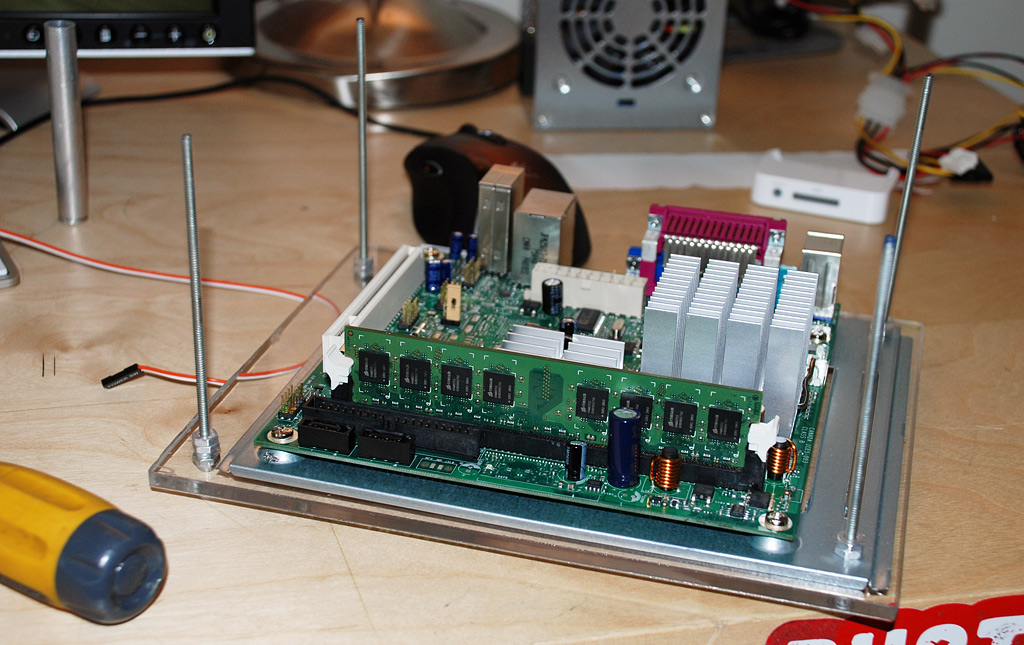
Case Construction
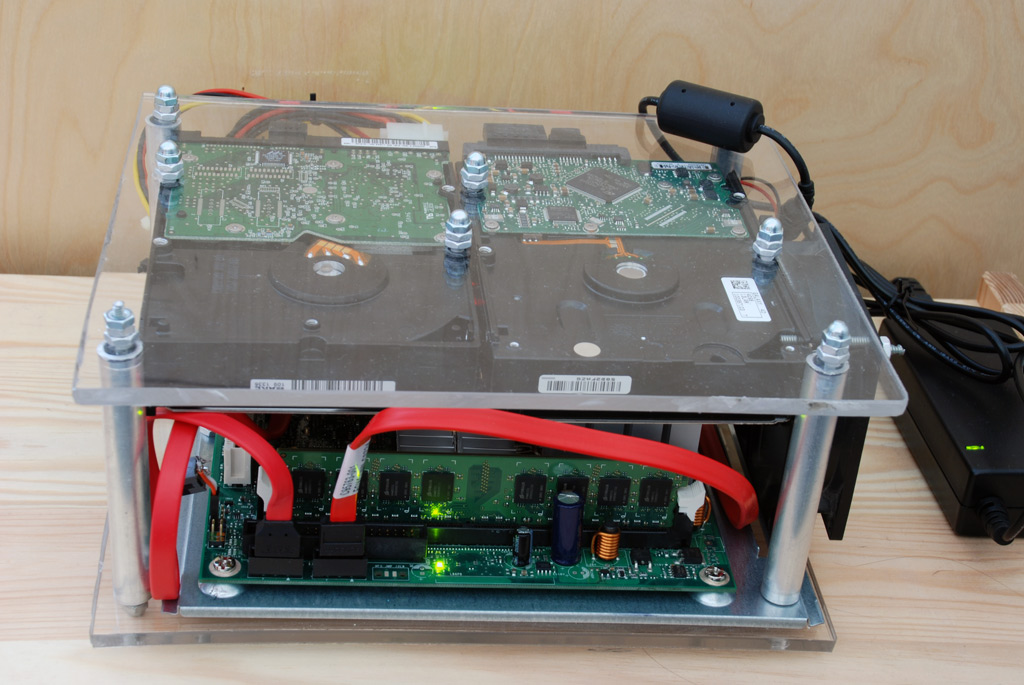
I decided to build a relatively simple case based around 2 layers with the internals entirely between the layers. This design should aid cooling by creating a wind tunnel effect. I positioned a single 80mm fan at one end of the case to blow through and it maintains a decent temperature all while remaining near silent. It is the only fan in the entire computer.
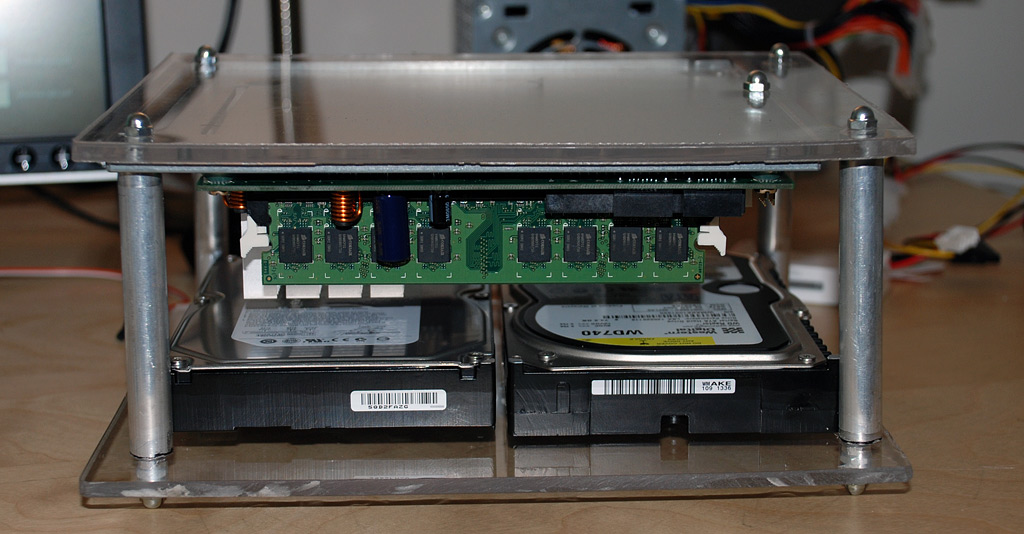
If I had more time and resources I would have outsourced the plexiglass cutting to a laser cutter instead of cutting it with a Dremel. The edges were not smooth at all so I had to sand it down a bit and I’m still not entirely pleased with the outcome.
Power Supply Shortcomings
The power supply I’m using is the 120 Watt PicoPSU. The only circuitry is a little block on top of the ATX connector that receives 12 VDC from a small power brick (like a laptop). There are two problems with this power supply. First off, it makes a very tight fit with the ethernet jack. So much so that I ended up cutting out a part of the metal box around the ethernet jack and re-insulating it with a piece of rubber electrical tape. Hopefully, having the PicoPSU’s VRM so close to the ethernet jack won’t bring up any EMI issues. Fortunately for this, as you’ll read later on, I don’t end up using the onboard ethernet.
The second problem with the PicoPSU is that it does not come with a P4 power connector. A P4 connector is a small square block connector that provides a solid 12V rail to the processor. Without this, the motherboard will not POST. I had to solder one up from spare parts, although cheap molex to P4 adapters do exist. However, if you opt to go the route of the adapter, you will lose one molex connector and be stuck with a single SATA power jack and a floppy power connector.
Since I have 2 hard drives in this computer and wanted a spare molex connector around for whatever reason, I soldered on a few extra molex connectors. While I was at it I also unsoldered the parallel IEEE 1284 and serial ports as I can’t remember the last time I’ve used them, and it can only help the air flow in the case.
While I’m on the subject of soldering, if you do any soldering on a motherboard you will want to get a more powerful soldering iron. Solder used on motherboards has a considerably higher melting point and was hard to work with using a 25 Watt iron. I found myself heating the tip of the soldering iron with a blow torch many times.
Paltry Linux Support
In the last part of this series I mentioned my troubles with setting up the video driver in Linux. At this point I am still not capable of producing the full 1920×1200 resolution my monitor supports. Regardless, I moved on and set up Samba to share my second hard drive.
Samba was easy to setup with Ubuntu’s Shared Folders under the Administration menu. I just had to tell it what path to share and give users permission. Using the package manager I installed a Samba shares manager and gave the guest account Samba privileges and created separate passwords for my roommates. You don’t need to install that GUI application to manage Samba users – it can be done with the command line relatively easy.
sudo smbpasswd -a username
That adds a user (substitute “username” for the actual username) and lets you create a Samba password. To the best of my knowledge you can only add Samba users that are already users on the system. That is, if you want an entirely new user you will have to add the user in the OS first, then add it to Samba.
After that’s all taken care of you can connect to Samba in Windows by browsing through the network or in OS X by selecting Go » Connect to Server… in Finder. Then provide OS X the appropriate IP of the local box in the following format:
smb://192.168.1.111/
The IP above is just an example for a typical IP found on a local network administrated by a Linksys router. You’ll then be asked to provide proper login credentials, then you will need to choose the Samba share you wish to load. There will most likely only be one share available at this point if you only shared one during setup.
The SMB share will appear in Finder and you will be able to access it like a network drive. If you can’t edit files on the new share, you will want to go to the Samba share manager application in Ubuntu and uncheck the read-only box. This is the info for my mounted Samba share:

If you’re the type that prefers FTP to everything, take a look at this proftpd tutorial.
You were saying something about bad Linux support?
After I got Samba up and running, I naturally began testing file transfer speed from a wired computer to the wired server. Something was horribly wrong. The fastest I could get was much less than a MB per second. For comparison, I usually get around 7MB/sec when transferring files between local machines.
After a very long time of searching, it turns out the SiS900 Fast Ethernet chip used on the Intel D201GLY2 motherboard is not well configured and supported in current Linux kernels. Fixing it would have required mucking around with patches and recompiling the kernel – not something I wanted to do at the time. Instead I ordered a $10 low profile StarTech 100Mbit NIC. I opted for low profile as my case does not have much clearance. If I had set it up to have more space, I might have opted for a more powerful gigabit NIC with a dedicated IC for dealing with network traffic instead of offloading portions of it to the CPU, as cheaper NICs tend to do. However, my network infrastructure isn’t gigabit friendly at the moment so settling for the 100Mbit NIC was fine by me.
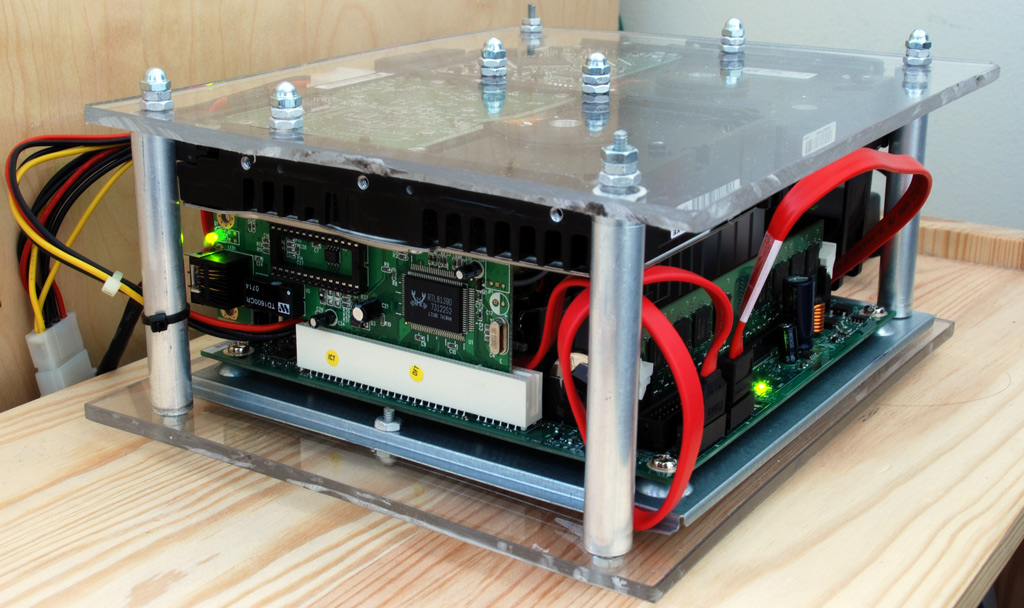
With the new NIC, FTP and Samba transfers are at a consistent ~7MB/sec. That is enough to, hypothetically, stream a 50GB 1080p High-Def movie from the file server to any computer on the network.
More Pics and What’s Next
Now that I have Linux setup the way I want for the most part, I can do everything I need over SSH including managing downloads. One of the constraints of this motherboard is that there are only 2 SATA connectors. I think this might become an issue for me in a while after I fill up the drives currently in there. Regardless of the various hardships I encountered with setting up this computer I am very pleased with the outcome.
As for my aspirations of using the server for an OS X Time Machine backup NAS, I’ll be holding off for now. There is an issue with unsupported network volumes when they become full where OS X won’t know the boundaries of the disk and when it needs to remove older incremental backup data, it will actually corrupt the disk. Thanks to Leon Freyermuth for pointing me to this issue.
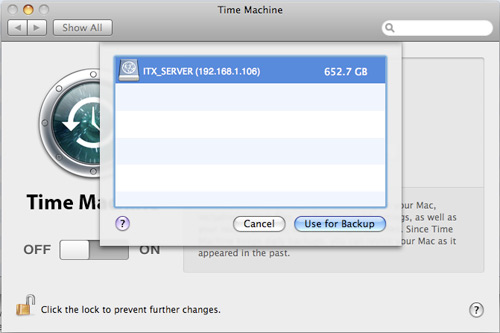
After flipping a bit in com.apple.systempreferences, Leopard recognizes unsupported network volumes. I wouldn’t recommend using it just yet though.
Down the line, I would love to experiment with other, more powerful mini-ITX boards. AOpen has one (i945GTt-VFA) that supports Core 2 Duo processors, has Gigabit LAN, 7.1 channel audio, Intel onboard graphics and some other things. However, is quite expensive compared to the $65 Intel D201GLY2 motherboard I am currently using.
How do you think it turned out? How is your PC coming along if you’re following these DIY posts?
PaulStamatiou.com runs on the Thesis Theme for WordPress
Thesis is the search engine optimized WordPress theme of choice for serious online publishers. If you’re a blogger who doesn’t understand a lot of PHP, Thesis will give a ton of functionality without having to alter any code. For the advanced, Thesis has incredible customization possibilities via Thesis hooks.
With so many design options, you can use the template over and over and never have it look like the same site. The theme is robust and flexible enough not only to accommodate a site like PaulStamatiou.com, but also to enable the site to run far more efficiently than it ever has before.


{ 1 trackback }
{ 42 comments… read them below or add one }
It’s great to see you using fancyzoom! Also, that’s an amazing case. +10 points for style.
I’m waiting for the rumored dual-core version of the D201GLY series. I’ve been wanting to buy one ever since the original one came out but never really saw the need for it…
Once I saw your post regarding Leopard Time Machine running externally on this as a shared drive (Time Capsule DIY, anyone?) I added you to my RSS reader and am trying to resist hitting the “Checkout” button for the motherboard ;).
Let me know if you ever get Time Machine to properly backup (without corrupting lol!). Regarding the issue, wouldn’t it be possible to write a script on the main machine (not the backup one displayed above) that checks the HDD size remaining and initiates an automatic deletion of certain ‘old’ backup folders? Or at least the script notifies you so you can manually delete the older backups? It’s not as clean as Time Capsule but hey..
Have you tested restoring from your time machine backup via SMB? I’ve read it will successfully back up, but will have trouble recovering space when the backup space runs out and possibly have trouble restoring completely.
I hate to say this, but you made the PicoPSU installation way more complex than it had to be. A little planning and you could have ordered some adapter cables all for under $5 and from the same company shipping the PicoPSU. Not that your method didn’t work, but it was just more complex than it had to be.
Regarding the size of the PicoPSU, yeah it’s a tight fit but it does fit just fine, and the PicoPSU people have even run tests on this board without any issues. I’m not too worried, but if you were, instead of hacking away at the mobo, you could have bought an ATX extension cable.
Now regarding Time Machine, yes there is an issue with deleting backups (and even unmounting), but that can be alleviated first of all by using AFP instead of SAMBA. I don’t know easy it is to set up AFP under Ubuntu, but on my FreeNAS install it was a view clicks (and I don’t have any video issues + I can control everything from the web panel :-) ).
Now that will fix the corruption of the sparebundle image, but Time Machine will now delete all your backups instead of just one. That’s because the sparsebundle is unlimited in size, and Time Machine isn’t taking account of the hard drive size. You can fix that by setting a limit on how big the Time Machine sparsebundle can get. Here’s the command to fix that:
hdiutil resize -size 500g -shrinkonly /Volumes/Network_Drive_Name/path/to/timemachine.sparseimageHopefully 10.5.2 will fix those issues since Apple will have Time Capsule to support. Of course, they may just drop the whole sparsebundle thing and use a native OS X install + HFS on Time Capsule to work around the issues.
Finally, regarding your slow transfer speeds over SMB/AFP, I don’t think you need to recompile the whole kernel. On the FreeNAS/FreeBSD kernel, only a few kernel flags are needed (I actually had to do this on my old computer, so it’s not just this board). FreeNAS provides a checkbox to add those kernel flags. I’m not sure if they work under Linux, but I can get those for you if you want.
I actually did add a second ethernet card as well, but not for speed issues. My board’s ethernet jack connects up to a wireless ethernet bridge. This allows be to use my router’s internet so I can FTP anywhere, and I also setup an rsync of my Media Temple server files. Then the second NIC hooks directly to my MBP for faster Time Machine backups (G speeds just suck).
Overall, I’m very please with my sub-$200 and have no regrets. It’s running so much better than using my old computer. I just wish Newegg would of had the newer mobo in stock for the SATA ports. It’s not an issue now, but I’ll probably want SATA in the future.
The humor of using a raptor in a file server is great. I guess sometime in the near future I’ll assemble my file server from beefier components, if only there was a P35 or G33 based mini-ITX board with onboard video, 2 ram slots, a PCIe slot, and the list goes on. Nice case construction, now sand down the kitchen table you destroyed ;)
I absolutely love that case. :)
@Ron – thanks for the comment. Regarding the picopsu stuff – I am well aware of getting proper adapters but I was rather impatient and had a soldering iron handy. :-)
I’ll have to dig more into the whole Time Capsule thing but I had heard about luck using AFP but since I connect to the share on Windows, Mac and Linux boxes I wanted to have the maximum compatibility. I’m not familiar with AFP – can you connect to it easily under Windows?
I don’t think there is a way to connect to AFP under windows, but you shouldn’t have to drop SMB to support AFP. They both should be able to coexist using the same shared folders, etc.
Oh yeah, I just wanted to say, I probably would have hacked up the cables as well had I not known I needed adapter cables. Thankfully I stumbled into an article mentioning that just a few minutes before clicking buy.
lol Chris. Wouldn’t you rather have an X38 with dual PCIe 2.0 slots ;)?
Seriously though, some mini-itx manufacturers have made G965/G945 motherboards (iirc, AOpen, Commell etc.) In time, I’m sure a G33/G35 one will emerge.
Very nice case, although personally i would of just garbed a nice looking but cheap desktop style case for it.
That zoomed image thing takes too long and doenst unzoom when you scroll the page like most others do.
Im just annoyed that the NZ distributor for those boards wants close to NZ$120 for them – they should be closer to $90 with the US$ being as stuffed as it is. – AND thats not even the V2 board, so its a celeron 215 not a 220.
Might have to get someone to pick me up a couple on the next trip to the states since they crap all over the via processor ones for value.
Paul, looks like your $200 Linux box is coming along nicely. I don’t know if I like your see-thru case as much as the Compubeaver though… ;)
The image zooming feature looks great. As for the PC, I would rather just buy an external for your purposes, but building a PC is always fun.
@Justin – regarding the external hard drive comment, it serves more as a NAS as my roommates tap into it and we stream media from it often. It also comes in handy as a download box, which I’ll elaborate on in another article.
The shots of the desk are priceless. Especially with the blowtorch in the mix :)
Great write-up and really nice box!
I just received my board as well. bought one inspired by you.
Short write-up of my motherboard-replacement. In swedish, sorry, but the pictures are in english ;-) I also ran some benchmarks against my old board and compared to my Macbook: http://jato.mine.nu/2008/02/07/serverbyte-intel-d201gly-pa-plats
My original plan was to keep it in the same box as my old mini-itx. Unfortenately I couldn’t do it as nice as I wanted so I had to fall back to an ordinary computerchassis in the $20 range. Lot of room in one of those: http://jato.mine.nu/bilder/v/prylar/mini-itx/DSC_7530.JPG.html
You mentioned problems with the ethernetspeed and that you had found a solution that needed patching and recompiling the kernel. You don’t happen to have a nice URL that describes this? :-)
someone has had tooooooo much time on his hands! :)
I’m curious why you chose to use FancyZoom instead of thinks like lightbox and thickbox.
@Kevin – FZ was built from the ground up to do just this.. zoom images. It is fast and lightweight compared to the other (bad, if I may say) *box alternatives.
I think it turned out pretty well, Paul. I was a bit skeptical about the plexiglass case until I saw what all you were packing into it. Does that create any kind of cooling problems in your room? (As in, does it make your room heat up a lot more than before, or is the increase hardly noticeable?) Regardless, the final result is that it looks really nice and is probably much easier to tinker with when needed.
I’m also impressed with how much soldering you did on the main board. Probably a good idea, given the space constraints. Overall, a great project! Thanks for the coverage!
First off, I wanna thank you for making this section… I was planning on making a fairly basic pc for my room and i was thinking about slapping it between two pieces of plexiglass or something of the sort but i didn’t know it was possible… then i saw your article on gizmodo.com and I was like “YES!! that’s what i need!”…. but anyways… my question… Is it necessary to have a motherboard tray? As far as i can tell… It should b fine w/o as long as i put some spacers in when i bolt it to the “case”…
@Brad – it will be fine without a mobo tray, i just had one so I used it. You can just get some plastic standoffs.
Instead of using regular plexiglass I urge you to try lexan. http://www.rplastics.com/lexan.html
We use this high durability plastic on our robots for the First robotics competition. The plastic can easily be cut with a band saw, table saw, or even a jig saw. Hope you enjoy.
yeah… i totally forgot about lexan… my dad works at GE and he could probably get some for me for nothin… Thanks!
Impressive! A buddy of mine was just talking about building something like this, your method will definitely appeal to him. Pretty slick that you have it running in so many ways, a time machine backup and a media server for your roomies. Congrats on your achievement none the less.
And by the way, FancyZoom is pretty slick. (That’s coming from a lightbox user)
Hey.. Great articles.
Im in the process of developing a POS system in Java, with Linux as the main platform. Im very interested in this board for that purpose.
Yuor articles answered a lot of my questions about it.
Regarding the slow net, I found this at the ubuntuforum, while searching for “sis900 slow”:
———————————————-
Hello Fellow Ubuntuinians,
I just wanted to let you guys know that I was having the same problem with the lag/nil activity on Ubuntu through this sis900 lan as well. Removing the router’s DNS address from the resolv.conf cleared the problem right up and I couldn’t be happier!
Thanks for the great info!!!
Matt
———————————————–
Link: http://ubuntuforums.org/showthread.php?t=157577&highlight=SiS900+slow
Best Regards
Michael Krog
Nicely done!
I as I was reading, I was hoping to see that you had gigabit ethernet.
With my server, I have gigabit ethernet, but samba will only go to about 9.7MiB/sec, which is a far cry from gigabit speeds.
Anyway, I like the case. It is very sleek looking.
I’m not sure if its the same thing, but this is a similar setup with a LEGO case: http://home.hawaii.rr.com/chowfamily/lego/ :)
What, no neon?
Seriously, when I’m looking for a machine on the cheap, I usually go to the local computer chop shop. I can usually pick up the top of the line machine (from 3 years ago) for pennies on the dollar.. Best part is most of the components are already well documented and drivered in most linux flavors.
Is ‘drivered’ a word? I guess it is now.
Great project Paul. After reading your article, I was interested and will build my ITX PC, too. I will follow your recommendations. Thanks for your advices.
Best wishes,
Harold A.
Virginia
PS. Where can I find materials to build a case like the one you use?. Gracias (thanks) again…
@Harold – You can get the plexi/acrylic/lucite and nuts/bolts at any good hardware store like Home Depot.
Hey Paul!
I’m in the process of building a machine just like this one together with a DIY case. But how do you switch you one on and off without a power switch? Did you make one yourself?
Thanks
James
@James – I had a BERG-pin switch lying around that I have attached but since it’s a server I don’t really need to turn it on/off much at all so I tend to not have a switch and just short the 2 pins with a key or something if necessary.
Thanks for the quick reply Paul, so could I simply use a jumper in place of the switch as mine will also be on 24/7?
BTW great site, love reading the articles, keep em coming!
@James – well you can’t use a jumper as that would put connectivity between the two pins at all times, probably creating an incessant shutdown-restart cycle.
Once again, thanks for the prompt reply!
I see, so all thats needed is a short on the pins when a PSU is connected! Thanks, I’ll let you know how mine goes.
James
Nice rig,
only one question, have you done any measurements on the powerconsumption?
would be great to know.
/Filip
Hi Paul
Nice DIY, I’m thinking of building this setup with the TV out board. I would like to build it to stream netflix videos to my bed room TV. Does anyone know if this will work ok? or would it be better to get the non TV board and add a nice video card? note not aiming for HDTV
You should look into the dual-core, hyper-threading Atom CPU on the Intel D945GCLF2 mb – it has gigabit Ethernet, PCI slot, tv. (composite) output and a very well supported GMA950 video section. It is also MiniITX and sells for about $85.
as for the finishing of the plexiglass edges, just use a propane torch and run it along edges. it will smooth them out nicely
Paul, several weeks back you commented on my NAS (which was inspired by yours – http://aaroneiche.com/2009/03/31/my-diy-nas/) and you mentioned you’d moved from this machine to a larger PC essentially for brute force. Have you thought of upgrading your little PC to do the heavy lifting? How much power do you need for your media machine? (Are you using it as an HTPC?)