Why I’m More Productive on a Mac

June 1, 2006 · 73 comments

There is a reason why I’m always that guy using one of the few Macs stranded away from the sea of PCs in the library. It’s not because Apple’s OS X is superior to Windows in terms of stability and speed, but more along the lines that OS X lets me be extremely productive with several key features. I am adept in utilizing each system to its potential, having used both for years on end. Macs just let me do more. Here’s why.

Exposé, Exposé, Exposé.

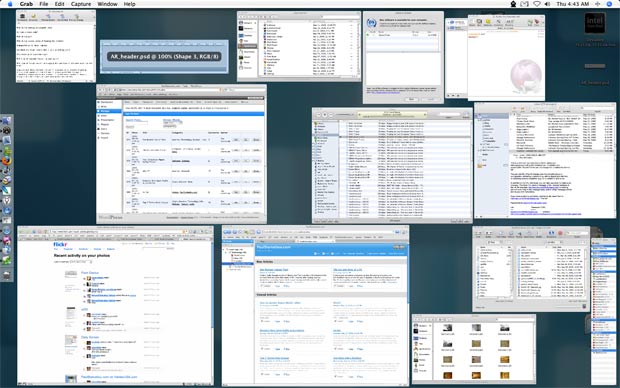
Alt+Tab/Apple+Tab can only go so far. When using a multitude of applications, each with a small repository of its own windows, there is simply no other way to find the window you want on a PC. Microsoft does it textually in Windows with taskbar items but how is that going to help me when I have seven windows in PhotoShop all named untitled something or the other? OS X paired with exposé does it visually and textually. Sliding my mouse to the top right corner shows all windows on the screen while hovering over them displays the name of the window. Minimized windows remain in the dock but the dock also does things visually so it’s not as much a burden to find what I need compared to Windows. Playing a QuickTime movie? No worries, it keeps on playing with a small preview in the dock when minimized. Whenever I find myself using a PC, I’m always drawn to move my mouse into one of the corners to set off an exposé action.

Exposé

I can think of hundreds of times when exposé has saved me time and superfluous clicking. For example, when studying for my computer science final I had over 20 PDF’s opened on my Mac. There is absolutely no way I would have been able to find which PDF I wanted if I had to use the awful “window grouping” that Windows uses.

Exposé
Try taming that in Windows.

Exposé lets me easily view all open windows, all open application windows, the desktop or dashboard. Unlike having to click on the show desktop quick launch button in XP, I can simply throw my cursor to the top left corner to peck around with the files on my desktop. I can take as long as I want with things on the desktop – only when I put my cursor back in the top left corner does it resume my previous activity.

Dashboard

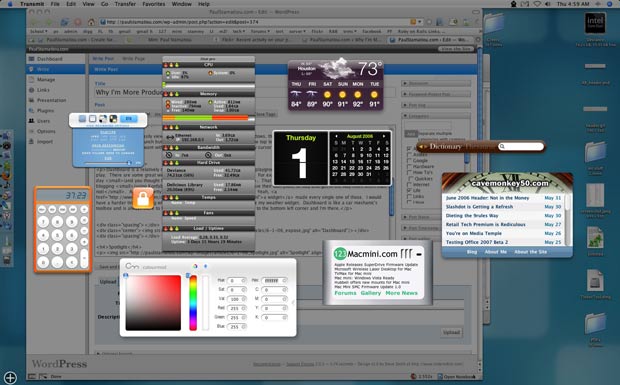
Dashboard is a relatively new feature for OS X (10.4+) that creates a playground where widgets live. I take that back… it’s not all play. There are some great widgets out there that help me be productive. For example, I use the dictionary widget many times every day (and you thought I was a spelling bee champion, ha!). That beats having to pull up dictionary.com on the PC while blogging (using Konfabulator is pointless as well.. widgets don’t have their own place to stay and get in the way more often than not). All those pretty screenshots you see in most of my articles? Yeah, a widget made every single one of those. I would have a harder time deciding whether to wear shorts or jeans if I didn’t have my weather widget. While designing or photoshopping something, I find the ColourMod widget indispensable. Dashboard is like a car mechanic’s toolbox and is always there to help. In my case, a quick flick of the mouse to the bottom left corner and I’m there.

Dashboard

Spotlight

SpotlightThere is a strong dichotomy between Windows XP’s search and OS X’s robust Spotlight. One works amazingly well and the other just doesn’t. Spotlight can instantly find anything anywhere. Forget the name of the PSD you were working on? No problem, just type a few letters, a file extension or whatever you remember and spotlight returns results from documents (even searching Adium logs), folders, mail messages, images, music.. just about everything. Too many results? You can easily narrow your search scope by directory/drive volume, date or organize by name, date, kind and people. The list goes on. Every finder window also has its own search box, so finding what you need is never far away.

QuickSilver

I could write a 5,000 word post on QuickSilver and I still wouldn’t have conveyed how magnificently it saves time and helps me do things in only a few keystrokes. Mastering QuickSilver itself is an art. I’m going to go ahead and state that QuickSilver can do anything, because I’m pretty sure it can. It can launch applications, find files, email things, control iTunes, browse directories, open directories in applications and so much more.

{ 18 trackbacks }

GGTD-Geeks Guide To Getting Things Done » Blog Archive » GTD Power Links!!!!!
June 2, 2006 at 2:03 am
OS X Freeware » Blog Archive » Am Mac noch produktiver mit Freeware
June 2, 2006 at 6:19 am
Anonymous
June 4, 2006 at 1:42 pm
Zolkos - Technology News and Random Stuff » Blog Archive » Productivity on OS X
June 5, 2006 at 3:11 pm
Paul Stamatiou on Mac productivity | 43 Folders
June 6, 2006 at 7:45 am
End of Silence - Random musings from a geek dad » links for 2006-06-06
June 6, 2006 at 12:18 pm
Deep Codes » Productivity and Macs
June 6, 2006 at 3:53 pm
catharsis » this week the trend.
June 7, 2006 at 4:42 am
Anne 2.0 » Blog Archive » links for 2006-06-06
June 7, 2006 at 8:47 am
Seanco » PaulStamatiou.com » Why I’m More Productive on a Mac
June 7, 2006 at 11:06 pm
Barebones theme for illtemper.org
June 8, 2006 at 12:47 am
Niklas’ blog » Blog Archive » My MacBook problem: OSX vs Windows, Humac vs service
June 14, 2006 at 3:48 pm
OSX Productivity « WaitState
September 20, 2006 at 8:08 pm
Basement Tapes » Productivity and Macs
September 20, 2006 at 8:21 pm
uninteresting :: rich » Blog Archive » PaulStamatiou.com � Why I’m More Productive on a Mac
October 26, 2006 at 5:34 pm
A few Mac productivity pointers
October 17, 2007 at 8:10 am
Paul Stamatiou: the most productive person I (virtually) know at dougbelshaw.com
January 9, 2008 at 5:38 pm
Twitter My Way to a MAC : Introverted and Loving It!
June 26, 2008 at 7:48 pm

{ 55 comments… read them below or add one }

1 Matt June 1, 2006 at 6:19 am

QuickSilver toasted my bagle this morning and spread cream cheese on it, the chive kind that I like. The bagle and cream cheese extension is by far the best extension I’ve found for it so far. I’m going to let it try and wash my car this weekend. I’ve owned a mac for 6 days now and it’s already replaced sliced bread in my book.

Also, Paul, I notice your feed burner lists ~52,000 subscribers… ummm, wtf?

Reply   More from author

2 Tommy June 1, 2006 at 8:13 am

Paul’s a popular fella Matt! Cheers for that Paul. Now you’re making me want my Macbook even more :(

Reply

3 Angel June 1, 2006 at 8:21 am

Quicksilver has to be the main reason why I’ve officially switched back to Mac after using PCs for the past 10 years. I often find myself forgetting and using Mac shortcuts on my PC at work.

Reply   More from author

4 Faruk AteÅŸ June 1, 2006 at 8:57 am

Paul, I agree completely about the reasons you’ve listed. There are two that I want to add, though, which aren’t application/tool-related:

1. No maintenance required

Compared to Windows, I spend about 1% of my time or less keeping my Powerbook in perfect working condition. With Windows, reboots, lockups, software installation, software removal, file organization and more was just so utterly time-consuming. With OS X, it’s all gone away. A reboot for an OS-level security update and that’s about it.

No more sorting of files (pictures go into iPhoto, music goes into iTunes, etc.), application management is ridiculously clean, easy and efficient (and user-friendly!) and on the whole, I just don’t have to do anything to keep OS X in great condition.

2. OS X works for me, not against me

If I had a nickle for every time Windows XP seemed to just make things more difficult for me than they’d have to be, I could’ve quit working and live on interest the rest of my life. A nice idea, but since I didn’t get that nickle, ever, I really would’ve preferred if the OS would’ve just been cooperative.

OS X is. It helps me, it makes things happen faster and more efficiently for me, it takes control of repetitive, silly tasks so that I don’t have to keep doing boring little things over and over again.

Because OS X makes it so much easier for me to focus on doing what I really want to be doing, I’m much happier and the complete removal of stress thanks to using a stress-free OS has made my entire computing experience much more pleasant and, as a result, speedy.

Reply   More from author

5 C. Wess Daniels June 1, 2006 at 9:00 am

Paul you to use flock…nice. Yeah and did your subscribers jump 49,000, if so that’s amazing.

Reply   More from author

6 Derek Punsalan June 1, 2006 at 9:56 am

After having been off of a OSX for the past 6 months, I jumped back on the boat with a MacBook. I remember running Quicksilver on my old Powerbook but have yet to install it on my MB thinking that Spotlight is a worthy alternative. Am I wrong? Believing that you have mastered the system and apps, what significant advantages does Quicksilver have.

I’m also looking for a decent coding application. Something that isn’t emulated (PPC). At the moment I have skEdit and SubEthaEdit loaded. SubEtha is still on demo mode. I’ve been bouncing between the two all week. I like the tabbed interface of skEdit, but prefer the simplicity of SubEtha (integrated FTP is blech). Any insight?

Reply   More from author

7 Faruk AteÅŸ June 1, 2006 at 10:08 am

Derek, I personally really prefer skEdit:

- quicker to start and snappier overall
- Snippets make coding/HTML’ing/CSS’ing a bliss
- Auto-close tags is very convenient when writing markup or blog posts & articles (which, yes, I use skEdit for!)

SEE feels a but too bloated for my taste. Also, I love integrated FTP :) I like working remotely but I don’t like working in Vi or nano or other such silly things.

Reply   More from author

8 Paul Stamatiou June 1, 2006 at 11:29 am

I just think Feedburner is acting up today…

Reply   More from author

9 Manoj Khanna June 1, 2006 at 1:09 pm

I agree with you totally Paul. Mac makes you very productive, but I guess Windows users like the way their life has been swaying them for all these years. I think they like the way they are productive in their own sense. With all the good reasons for Mac, Windows population thinks that Mac is a very complex OS to learn and work on and again you don’t get too many softwares for free for Mac. Hence, less hackers!

Reply   More from author

10 titanium_geek June 1, 2006 at 2:11 pm

keyboard shortcuts- it bugs the crap out of me on a pc and I hit Alt-something and it opens a menu or something.

Yes, I agree. A mac makes me more productive.

I can dual task without having to give all my focus to an application- like changing songs in itunes- F9, choose window, skip, apple+tab to get me right back to where I was.

I find hotcorners annoying sometimes though- the only one I’ve got is “exposé for individual apps” because it’s too clunky to F10 +click. I usually end up hitting F11 anyway- desktop.

good article Paul!

Reply   More from author

11 Faruk AteÅŸ June 1, 2006 at 3:05 pm

Manoj: coincidentally, I just wrote a pretty lengthy article on why some people hate on the iPod and Mac and will stick to Windows no matter how acquinted with OS X you make them. May wanna give it a read :-)

Titanium_geek: I use the bottom-right corner only, and I use it for Dashboard. That way, I can just drag files from my desktop or the Finder to the corner, and then drop them in my Transmit widget to insta-FTP them to my site. :-)

Very handy.

Reply   More from author

12 jakedahn June 1, 2006 at 5:49 pm

Haha, see you’re using Flock .7 build in the expose snapshot, enjoying it?

Reply   More from author

13 Paul Stamatiou June 1, 2006 at 6:49 pm

Yeah, just waiting for the beta to come out. =D

Reply   More from author

14 Joe Kwon June 2, 2006 at 3:56 pm

I’m a recent switcher, and I’m loving my Macbook Pro. I also have a Mac Mini, and had a G4 Powerbook before that.

Thanks for these tips as I am currently 1000x more efficient on Windows than I am on Mac OS, but I’m wanting that to change.

I’ve forced myself to do an entire development project on my mac, and it was rough, but learning always is.

To be fair tho, Konfabulator (Now Yahoo! Widget Engine) does have it’s own “Expose” layer. You can set the widgets to only show when this layer is called upon.

In any case, great post.

Reply

15 cavemonkey50 June 2, 2006 at 8:04 pm

You hit this spot on. Since I switched to Mac whenever I use my Windows box I feel like I spending most of my time just trying to get the window I want. A few days ago I was doing some Photoshop work with a file on my desktop, and uploading it to my website. Whenever I was trying to uploading it I was getting pissed off since I had to minimize all the windows, then pick up the file, hover over the taskbar, then drop in the FTP client. On Mac all I would of had to do was press F11 and drop in over Transmit’s dock icon. Then a press F11 and I’m back to where I was. Simple and they way window management should occur.

Reply   More from author

16 cavemonkey50 June 2, 2006 at 8:06 pm

By the way, I see my website’s widget in there. :D

Reply   More from author

17 Joe June 2, 2006 at 8:38 pm

Considering buying a MacBook Pro for college majoring in CS also, do you have any trouble compatibility wise in a CS major with a Mac? I know you can dual boot Windows, but with your classes do you have any trouble hardware wise with a Mac. Thanks.
Joe

Reply

18 John Muir June 5, 2006 at 1:41 pm

12″ PowerBook = pixels are precious so I do the following:

1. Dock contains running apps ONLY
2. Quicksilver opens all apps
3. I instigate it with a double press of command which is faster when grabbing the computer!
4. Top left and top right corners of the screen are hot corners for Desktop and View All Windows Expose actions respectively … great when you’re not using an external mouse and much faster than hitting the function keys
5. Sidetrack turns my old trackpad into a scrolling one which saves time from unnecessary moves to scrollbars and the arrow keys, it also gives me right click so no more control+click

Using Windows from time to time sucks the most simply because I can’t do any of these!

Reply

19 Thanasi June 5, 2006 at 2:03 pm

Paul, I see you mentioned Exposé, and how your screen corners are set to activate it, but perhaps the Mighty Mouse deserves some metion here too, as it brings that productivity to your fingertips. Since getting my Mighty Mouse last summer, my productivity on my Mac has shot through the roof. I squeeze my mouse, and it’s set to show all open windows of all open applications (F9 on the keyboard). Clicking the scroll wheel activates Dashboard for me (and allows me to remove it’s icon from the dock). Clicking the right side of the mouse displays contextual menus (as is the case with any other two button mouse). I love the “any direction scrolling,” of the scroll wheel, as it saves a few seconds in moving the cursor to the scroll arrows, which add up quickly. All this without ever having to take a hand off the mouse, and all wrapped in a shell of one button looking goodness. I feel that the increased productivity built into OS X is fully brought to life through tactile controls, and the Mighty Mouse is the perfect piece of hardware to realize this. Even though these features are not present on a Windows box, I still bought one for my XP machine at work because I like the feel of the mouse, and because the government supplied mouse I had before was giving me serious carpal tunnel syndrome.

Reply

20 MikeInAZ June 5, 2006 at 2:08 pm

@Derek

Take a look at TextMate
http://www.macromates.com

Great text editor.

Reply

21 matt June 5, 2006 at 4:30 pm
22 Paul Stamatiou June 5, 2006 at 4:41 pm
23 Oyvind June 5, 2006 at 4:48 pm

Why use a widget to check spelling of words? There are two better ways (and I know since my native language isn’t English)

1) Hit Alt-Apple-D and up pops a definition of the word from the builtin dictionary. If it’s written wrong, click the more button, and 99 out of 100 times, it will give you a suggestion that is correct.

2) Start typing a word, but after a few letters hit ALT-Escape. Up pops a list of suggestions with all words in the dictionary that starts with those letters. Described with an example here.

=) Oyvind

Reply   More from author

24 thomas June 6, 2006 at 9:27 am

Dear Paul, terrific article.Quicksilver is the most amazing addition to the Mac OS i have ever used. have you ever tried “you desktops” i find the ability to create multiple but seperate work environments, as well with all the apps you have mentioned, a real boon to my work flow.http://yousoftware.com/

Reply

25 Erik June 6, 2006 at 10:01 am

As soon as Apple de-crapifies the Finder and adds sloppy focus, I’ll switch back. I’ve had Macs on and off over the years, finally got a modern mac with the original powerpc mac minis. Had a lot of problems with Finder, it’s a real piece of junk in OS X.

Virtual Desktop with Expose and Windowshade…there’s nothing like it. It’s almost the perfect desktop. Nothing on Windows comes close.

Reply

26 Derek Punsalan June 6, 2006 at 10:07 am

Hey Erik, it sounds like you need to try Quicksilver. I have the handy application loaded and spend less and less time in the Finder.

Reply   More from author

27 Brandon Pierce June 6, 2006 at 11:04 am

I use Quicksilver to look up works quite a bit, too. I think there’s an extension you have to load, but it works like this:

1. activate Quicksilver
2. type a “.” (period) and the word to look up.
3. to the action pane.
4. type “lookup” (I often only have to type “lo”) which will choose the “lookup in Dictionary” action.
5. press enter.

This launches dictionary.app and displays your definition. Alternatively, you can install GrowlDict, which works basically the same way, but instead of launching dictionary.app, it just displays the word definition in a growl message pane. It looks like a long process, but it’s actually incredibly fast and doesn’t require the use of the mouse.

By the way, I knew about the cmd-opt-D command that Oyvind mentioned, but the opt-esc one is new, and pretty nifty. I learn something new every day!

Reply

28 Juz June 6, 2006 at 11:13 am

I also despise the transition between my home Mac and my work PC everyday. besides the obvious (ctrl / command finger problems), getting at the desktop is an absolute chore in Windows (and very slow to hide the windows), and drag and drop is far from ubiquitous. Additionally, I find that Open/Save dialogs in applications seem to all work a little bit differently on Windows, with some respecting your favourites, some not. Just a paion when you get used ot not having to worry about it.

I also disagree that there isnt much freeware on Macs. I agree there is less, but if you include all the power of Unix/Shell/Python/X11 included in OS X, there is a wealth of well-established tools included – and if it is popular, you can bet it even has a nice Aqua front end available somewhere. In general though, the better presentation/usability of shareware apps on my Mac will often convince me to pay the $5-10 shareware price.

In general, PC apps (major ones) have bad “nag” habits also. takes MSN messenger for example – it turns itself orange in the windows-bar when you restart your machine just to tell you its on. I dont want to know that, I want to be able to assume you are on! And if I have to tell Adobe Reader I dont want the latest patch (and the inevitable restart) one more time, there’s gonna be tears. ;)

Reply   More from author

29 Andy Ferra June 6, 2006 at 12:09 pm

I love everything you listed about OSX as well.

However just for folks out there who do use PCs, I’d like to point out that, if you’re suffering from widget clutter with konfabulator it does have a dedicated display layer like dashboard called konspose, I think it’s F9 by default, but you can set it to anything you want.

Reply   More from author

30 monkeysplice June 6, 2006 at 1:12 pm

To reply to an earlier question, having a mac lets me seamlessly integrate with my university’s *NIX based CS department. The Terminal/ X11 shells on the mac let me work as if i were sitting at the workstations in the lab. The development work I do when sitting out on the quad (sadly with no wifi) can be ftp’d right to my drives on the CS network.

Also, does anyone mind that having a dozen widgets open takes up memory, I have been closing them to keep the resources free.

Reply

31 P8 June 6, 2006 at 1:13 pm

Don’t forget Huevos.

Want to look something up on google?
apple+c: copy it
apple+esc: popup huevos
apple+v: paste it
enter: see the results in your browser

Want to look something up on wikipedia instead?
apple+esc: popup huevos
apple+w: select wikipedia as search engine (of course you use a custom google query on wikipedia, because it’s much faster than wikipedia search)
enter: see the results in your browser

Reply   More from author

32 Paul Stamatiou June 6, 2006 at 1:14 pm

I have 2GB of RAM so I could run that many widgets and not have system performance affected as much. I can’t get by w/o them.

Reply   More from author

33 Scott June 6, 2006 at 1:19 pm

The subscribers went up do to this article being posted on macdailynews.com. This should also be put on Digg.com and then it will jump even more. Great read, anyone can learn something from it.

Reply

34 Scott June 6, 2006 at 1:22 pm

Another note, I’ve been on Mac’s since dec. of 04 and have had very few problems, and they were just minor issues or user error, fixed in minutes. The freeware is getting better and greater in numbers very quickly due to the fast growth of Mac’s. I love my mac.

Reply

35 Donncha O Caoimh June 6, 2006 at 1:43 pm

One of these days I’ll buy a Mac, but until then I’ll have some fun with Linux. Reading the comments here reminds me of the passion users of most operating system feel for their environment. Even Windows users.
Anyway, XGL on Ubuntu Linux rocks, and one side effect of the cute 3D effects is a a feature similar to Exposé. I hit F12 and all the windows on my screen line up just like on a Mac.
Then there’s Beagle, which does much the same job as Spotlight. I haven’t had much use for it myself yet however.
That Quicksilver app sounds like a very useful app! Kinda like the power of the command line for your GUI eh?

Reply   More from author

36 Grant Hutchins June 6, 2006 at 1:50 pm

The corners trick for Expose and Dashboard make it 20 times more useful. I encourage every Mac use to immediately set that up. For instance, if I need to drag a file from the desktop into an application, I bring up the application, flick my mouse into the corner, all the windows get out of the way, I pick up the file, flick again to put the windows back, and then drop.

Then show that to a Windows user and ask them if they can do anything remotely similar.

Reply   More from author

37 JD June 6, 2006 at 2:09 pm

Joe:

A powerbook *should* work for any cs program. They should be teaching you to program on a UNIX machine, meaning that you can use your own machine, or simply connect to a cs server.

However, if they’re requiring that you use an IDE that runs in Windows, I’d honestly reccommend another CS program.

Reply   More from author

38 Pierre Bernard June 6, 2006 at 2:35 pm

May I suggest HoudahSpot (http://www.houdah.com/houdahSpot) for your file searches. It’s based on Spotlight but blows the default interface out of the water!

A major update is due June 16. Keep your eyes open!

DISCLAIMER: I am the author of HoudahSpot

Reply   More from author

39 peter June 6, 2006 at 3:33 pm

interesting.
the first things i disable when i install os x are expose, dashboard, and spotlight. i love alt-clicking to hide the program i’m working in, and that’s enough for me. widgets and spotlight eat up system resources i don’t have. i’m about to get a second gig of ram, but i’d still rather not spend it on widgets. it just goes to show you that the tricks to being productive are really specific based on what job each person is doing on their computer. great article, though :)

Reply

40 nex June 6, 2006 at 4:58 pm

derek, i don’t find spotlight to be a replacement for quicksilver. i use quicksilver almost exclusively for launching apps, and on my puny iBook G4, it does that much, much faster than quicksilver, because it indexes a much smaller slice of my data. (as per the default configuration.) it also learns which app or file i want when i type in just 2 or 3 letters, and doesn’t throw a huge list of unrealted stuff at me. (which spotlight does as it knows about so much more data and also doesn’t learn that when i type “fi”, i always want fireburner and never the finder.) so even for an ignorant like me who doesn’t use all those super-powerful plug-ins, quicksilver is still useful. but it’s mostly about the greater speed, so maybe that’s not as much of an issue if you’re using a quad G5 with 2GB RAM.

Reply

41 Robert June 6, 2006 at 5:33 pm

I really disagree with Titanium_Geek. I converted to the Mac platform after using Windows since it’s 3.1 days. The only thing I hate about the Mac environment is the lack of keyboard shortcuts. Sure, there are some. However, you can’t totally drive an application without a mouse as you can with so many Windows applications. I’m _so_ much faster when I’m operating Windows applications from the keyboard that it’s not even funny (particularly in Excel). When I’m on my Mac pointing and clicking and pointing and clicking, I feel like I’m driving in the slow lane. Plus it aggravates the tendinitis that I’ve developed in my right forearm and wrist. Power users don’t use mice!

Reply

42 Mark Jaquith June 7, 2006 at 4:05 am

I use these four things as well, to boost productivity. Try these tricks on for size:

Use quicksilver to find a file… then drag it from Quicksilver into an app on your dock. Or, TAB, “open with”, TAB, “Application Name”

Working in Finder/Pathfinder? Find an app in Quicksilver and then drag a file from Finder/Pathfinder onto the Quicksilver window.

Need to move a file between two windows or the desktop? Expose + corners is your friend. Drag the file. Hit your “All applications” Expose corner. Hover over the window you want to put the file in. Hint: press spacebar to avoid the small delay. Drop the file. You can do the same for the desktop.

For Quicksilver, the best thing I ever did was set it up to use a double tap of the caps lock key as the activation. I can hit it with my left pinky without moving my hands, and I can do it with one finger.

Activate Quicksilver’s clipboard history. Instead of doing Copy, Switch, Paste, Switch, Copy, Switch, Paste… do Copy, Copy, Switch, Paste, Paste. Bring up the clipboard history in Quicksilver. Instead of using the forward slash key to browse it, just hit “return.” You’ll be given a search box. Start typing, and it live searches your clipboard history!

NEVER access system preferences manually again. Just type “[fragment of pref pane name] pref” into Quicksilver and it’ll come up in no time.

Set up favorites in your FTP app for common upload locations. Use the “upload to site” Quicksilver command to send files on their merry way (I use Transmit and the Transmit plugin).

All of this stuff has become habit for me. While on Windows machines (or other Macs!) I find myself hitting the corners with the mouse, or double tapping the caps lock key without even thinking.

Reply   More from author

43 Pierre Bernard June 7, 2006 at 6:05 am

@Robert

I have to disagree. The Mac leads when it comes to keyboard operation:

- Shortcuts are standardized: Cmd-Q quits all applications, in all localizations
- There are shortcuts aplenty. Even Exposé can be driven using shortcuts
- You may want to enable “full keyboard” access to navigate menus using arrow keys
- Using the “Keyboard & Mouse” preferences you may assign shortcuts to just about any menu item

I for one need the mouse way more often on Windows than on the Mac.

On the Mac I launch my applications using Butler (http://www.petermaurer.de). No click.
I switch apps using cmd-Tab, Butler or Expose. I switch windows using Expose.

The Mac text system defines quite an impressive number of shortcuts. Both for mouse and keyboard users. E.g. a functional home key, word selection, line selection, completion, … Moreover text systm shortcuts are completely customizable. Many chose to map all Emacs bindings.

Reply   More from author

44 Bytesmiths June 8, 2006 at 12:47 am

I’m not happy with Quicksilver. It won’t keep running. Two different machines, all it does is crash. Keep downloading newer versions. What’s wrong/

Reply   More from author

45 Mike Harris June 9, 2006 at 9:01 pm

Bytesmith, I don’t know if you’ve got the same problem where I do, where it operates for a while but then crashes silently. If it is, I’ve solved it … somewhat. In a very haphazard way. I created a script called “QSCheck,” and then saved it as an application that I leave open. The script is:

property delayTime : 5
on idle
tell application “System Events”
if (name of processes) does not contain “Quicksilver” then launch application “Quicksilver”
end tell
return delayTime
end idle

Thus, if it crashes, it relaunches shortly thereafter.

Reply   More from author

46 Didaskalos June 20, 2006 at 12:58 pm

I teach gifted kids — I wish they’d all get Macs because I spend way too much time trying to help the kids with Windows figure out how to fix their machines so they can do their projects. My school district no longer supports Macs and requires that any money we raise for computer purchases be used for Windows PCs. I guess if my job depended on computer problems I’d prefer Windows.

Reply   More from author

47 Guillaumeb August 6, 2006 at 5:23 pm

Well, I’ve tried a Mac a few times… Once you have set up WIndows XP I find it as productive… I mean what about Yahoo! Widgets??? (Just to name one alternative), Yahoo Desktop search is quite good as well

Reply   More from author

48 Brian March 14, 2007 at 2:38 pm

I have nothing against macs, but I don’t see how using the taskbar at the bottom of the screen is really that difficult for finding your open programs.

The things that generally keep me less productive are distractions such as websites, articles, forums,etc. All the stuff that both windows and mac have since they both have internet/browsers.

Reply

49 Paul Stamatiou March 14, 2007 at 4:05 pm

@Brian – what happens when you have 7 things open in Photoshop in Windows? Windows clutters into one grouped element, and even if you have that disabled it’s hard to know what you’re looking for without a visual representation. How do I know what header3.psd is compared to header2.psd?

Reply   More from author

50 Brian March 14, 2007 at 7:11 pm

@Paul

Well, I guess I’m not that type of computer user.

Normally in my line of work, I have only a few applications open at once:

Mail, notepad, internet browser (with tabbed browsing), webpage software, ftp

I can always read what I have open on my taskbar easily (we have moved on from the 800×600 days where all the files on the taskbar say S… T… H… etc.) Yeah, I guess a “power user” with a billion windows open would have a problem, but honestly it’s probably a problem with the person’s organization than the operating system. Windows or Macs can’t fix a messy person. I just don’t see how having many windows open would allow a person to be productive. It seems like they are working on too many things at once.

For me if I want information, I have it all nicely bookmarked (like news, weather, sports, etc.) All the programs I use everyday are on the desktop so it’s actually easy and convenient.

Would mac software really make me more productive? Probably not.

Reply

51 Bytesmiths March 14, 2007 at 7:31 pm

It’s easy to figure out: Windows are tidy, Macs are messy.

Macs use a “messy desktop” metaphor. You have pieces of paper all over your desk. Luckily, they naturally arrange so that you can see the title of each bit of paper. When you want one, you go get it out of the stack. It doesn’t matter if it’s a photograph, a bank statement, a letter from your mom, or some other type of document — they’re all there, available. And you can easily drag the photograph into the letter to mom!

Windows use a “tidy desktop” metaphor. If you want to work on a bank statement, everything gets cleared off your desk except for financial stuff. Then when you want to look at your mom’s letter, all the financial stuff gets cleared off so you can look at only various letters. Then to look at a photograph, you have to clear away all the letters.

How do YOU prefer to work? My desktop is messy, and I like it that way!

Reply   More from author

52 kostenlos Versicherungsvergleich March 19, 2007 at 3:35 am

Thank you for the great article. Greetings from Germany.

Reply   More from author

53 Brian May 16, 2008 at 9:24 am

I’ve used both and I can’t honestly say macs are more productive.

1. I don’t have problems with any computer. No lock ups or blue screens.

2. With today’s technology all computers are blazing fast. I don’t notice much difference on working on a brand new computer versus one that is 3 years old that has 2 gigs of ram. What’s that cost like $40.

3. Short cuts are short cuts. Both operating systems have them.

4. I remember where my windows are when working on windows. I don’t do graphics so maybe that’s why I don’t see the difference.

5. Working a whole day on a mac and working a whole day on a pc, I get basically the exact same amount of work done. Hey I even tried using ubuntu a few days here and they and I get same work done.

Reply

54 Jan Steinman May 16, 2008 at 10:40 am

Y’know, you guys are all wet. There are some very common situations where the difference between Macs and Windows are nada, zip, null.

For example, I recently went on vacation — two blissful weeks without email. When I got home, I found I had accomplished EXACTLY THE SAME AMOUNT OF WORK on Windows as I had on the Mac! This flies in the face of conventional wisdom!

I’m always on the lookout for similar situations. For example, I went to bed last night at about midnight, and when I got up at around 8AM, I was amazed to discover that, again, contrary to the opinions expressed by many here — whose impartiality must now be viewed as suspect — that during those eight hours of intensive mental processing (I dreamed I was swimming in a vat of chocolate syrup), I again discovered that I got EXACTLY THE SAME AMOUNT OF WORK done on Windows as I had on the Mac.

I’m about to go fix some oatmeal for breakfast. I’m going to do a very careful study. I plan to have a Linux machine booted as a control measure. But based on recent observations, I’m willing to bet that, yet again, the Mac and Windows will have EQUAL PRODUCTIVITY!

I’m always amazed at how biased and, shall I say, outright bigoted, the Mac crowd are. If I was able to prove that Windows is the equal to the Mac in certain situations, surely there are other situations in which they are equal as well.

Reply   More from author

55 Flüge Kanada July 31, 2008 at 8:32 am

I´ve bought the macbook air and almost throw it against a wall. i have been so dissapointed. the only feature it has and that works is the design but there is no functionality at all. don´t want to complain here, but tell all the people who think about buying this expensive thing, that it isn´t worth only a cent you have to pay for it, sorry.

Reply   More from author

Leave a Comment

You can use these HTML tags and attributes: <a href="" title=""> <abbr title=""> <acronym title=""> <b> <blockquote cite=""> <cite> <code> <del datetime=""> <em> <i> <q cite=""> <strike> <strong>

Previous post: Site Review: Yahoo! Tech

Next post: Congratulations to the Round Four 9rulers