How To: Rapidly Restart Mac Firefox

June 26, 2007 · 37 comments

I am not going to lie, Firefox for OS X is horrible reliability-wise. It crashes all the time, uses exorbitant amounts of physical and virtual RAM, sometimes won’t let you use the address bar… you get the point. The best fix is to restart Firefox whenever it begins acting sluggish, selfishly uses a lot of your CPU, etcetera. Unfortunately, that seems to happen more often than I’d like.

I was reading a post on The Apple Blog about a similar fix for getting Quicksilver to act properly when I immediately thought how this could be used to remedy my Firefox woes. Below I’ll show you how to create a similar Automator action which runs simple shell commands in the background to restart your sluggish browser.

  • First off, launch Automator from the Applications folder.
  • In Automator’s Library pane on the left select the Automator application and then drag the Run Shell Script action to the workflow (gray space on the right).
  • Set the shell drop-down menu to /bin/sh. Inside of the Run Shell Script box type:
    killall firefox-bin; open /Applications/Firefox.app
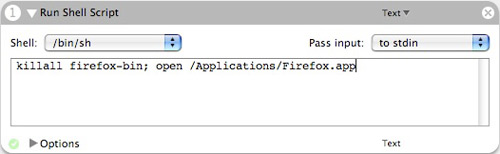
Restart Firefox
  • File » Save As Plug-in
  • Type in a name such as “Restart Firefox” and ensure the plug-in is set for Finder. Click Save.
Restart Firefox
  • Close Automator. Now right-click anywhere in Finder, such as on the desktop. Your “Restart Firefox” action will be within the Automator menu as pictured below. Since it essentially force quits Firefox, Firefox (2.0) will ask you if you want to restore your last session, which is great if you want to use the same session and just get Firefox working fast again.
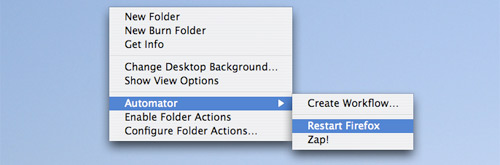
Restart Firefox
Restart Firefox
Firefox dialog you might see after restarting Firefox. I recommend selecting Restore Session.

Hopefully this little Automator workflow will save you from doing too many three finger salutes to speed up your Firefox browser.

{ 9 trackbacks }

links for 2007-06-26 | nicharalambous.com
June 26, 2007 at 10:22 am
AppleScript, Automator, Firefox « Lamiere
June 27, 2007 at 3:23 pm
Mac Tip: Quickly restart any program
June 27, 2007 at 5:37 pm
» Mac Tip: Quickly restart any program
June 27, 2007 at 6:09 pm
Techzi » Blog Archive » Mac Tip: Quickly restart any program
June 27, 2007 at 6:16 pm
Chiara Salvatore - Irrimediabilmente irrecuperabile » Blog Archive » Riavvio rapido di Firefox su Mac
July 2, 2007 at 4:42 am
iTunes & Last.fm | Adam Pieniazek
July 2, 2007 at 7:28 pm
Switchblog » Blog Archive » Rapidly Restart Mac Firefox (or any app)
July 4, 2007 at 4:38 pm
Rapidly Restart Mac Firefox
July 4, 2007 at 10:55 pm

{ 28 comments… read them below or add one }

1 Adam June 26, 2007 at 5:27 am

I’m sorry to say that I gave up on Firefox and went to play with the Camino family next door. Far more reliable, (at least since 1.5 was released).

Sure, the adblock is somewhat lacking, and I do miss the assortment of cool plugins but Camino is far nicer to use than Safari, and who can complain at that?

Reply   More from author

2 Adam June 26, 2007 at 5:33 am

I’m sorry to say that I got tired of Firefox on a Mac, and went to play with the Camino family next door.

Sure the Adblocking capabilities have their shortcomings, and I do miss the myriad of exciting plugins I used to use, but Camino is solid, dependable and far nicer to use than Safari.

Reply   More from author

3 Rich June 26, 2007 at 6:22 am

It’s also worth noting that if you use the optimized Firefox BonEcho builds, you’ll want to replace “Firefox.app” with “BonEcho.app”.

I had this same idea when TUAW published that Quicksilver hack. Nice post.

Reply   More from author

4 Blake Brannon June 26, 2007 at 6:59 am

Is there any delay from Automator in running the script? When I run workflows in Automator, it takes a while for Automator to get going. Course I am still on the PPC… damn I should really upgrade!

Reply   More from author

5 Sam Lu June 26, 2007 at 8:09 am

Great tip! Ever since I switched to using Firefox, I haven’t wanted to switch to anything else because of Firebug, even if it does have its slowdown setbacks from time to time.

Reply   More from author

6 Ankur June 26, 2007 at 8:09 am

To make this even more efficient, save it as a Quicksilver trigger (using the “Run command in shell” action)

Reply   More from author

7 Bertrand June 26, 2007 at 8:12 am

I don’t understand. I always use Firefox on my Mac with no trouble to notice. Maybe you will need to check plugins you use.
Thanks a lot for your blog which is a good source of information for me.

Reply

8 Greg June 26, 2007 at 8:19 am

great post. i notice a slow down every once in a while with The Fox. but i can’t pinpoint it. is there any “preventative maintenance” you can do to limit the amount of RAM that Fox is hogging?

Reply

9 10098 June 26, 2007 at 11:57 am

Hmm, that’s strange. I have been using the second version of Firefox (on an IBM, not Mac) for quite a long time and I never experienced such kind of problems… And I used it both on Linux and on Windows. I wonder why Firefox eats so much resources on Mac…

Reply

10 Paul Stamatiou June 26, 2007 at 12:10 pm

@Blake – Automator seems pretty speedy and instant for me.

Reply   More from author

11 Chris Marshall June 26, 2007 at 12:42 pm

Nice and simple Paul – perfect match for me (well the simple bit anyway)

Thanks

Reply   More from author

12 Yohannes Wijaya June 26, 2007 at 4:34 pm

Thanks Paul for the tip! Alternatively you can also type “open -a firefox” on the 2nd part of the command.

Reply   More from author

13 piratepete June 26, 2007 at 10:29 pm

Runs great on my intel imac. Maybe you need a fresh install, run some cron scripts??

Reply   More from author

14 Paul Stamatiou June 26, 2007 at 10:46 pm

@piratepete – OS X Firefox is bad for me whatever computer I’m on. Even on my week old MacBook Pro.

Reply   More from author

15 Donald Jenkins June 27, 2007 at 4:25 am

I’ve given up on FF, as even the BonEcho version is too crash-prone and sluggish. I’ve reverted to Safari 3 and/or Omniweb, which I find more reliable when, like me, you tend to open numerous tabs at once.

While I miss the Firefox add-ons which no one seems to have bothered to make accessible in Safari, I find actually you can do without them in most cases. If I really need it FF is still there anyway, but not for everyday browsing. What I missed most was better Gmail and I’ve solved that one by reverting to Apple Mail as my primary email application.

Reply   More from author

16 Adim Ofunne June 27, 2007 at 10:16 am

This is really essential for me, great post. Firefox has been driving me crazy for a while now

Reply   More from author

17 BOK June 27, 2007 at 5:14 pm

How odd..! Firefox is my browser of (1st) choice on Mac OS X (iBook G4 with 768MB RAM) for over a year now. It starts up somewhat slow, but it hardly crashes.
Must be external factors leading to this behavior, like (indeed) extensions. I’ve got some >15 installed, but still…
Can’t live without ‘em, as all of them are also installed cross-platform on WinXP, Linux and at work. As long as there’s no good alternative on all platforms I’m using, there’s no way to switch!

Reply   More from author

18 Blake Brannon June 27, 2007 at 6:24 pm
19 Josh June 27, 2007 at 9:49 pm

I tried this and it worked as advertised, great stuff! I find that sometimes I need to restart Adobe Illustrator from time to time, even the new CS3 intel native (yay!) version. I tried modify your script by just swapping in “Adobe Illustrator.app” but no luck….

any idea why?

Reply

20 Paul Stamatiou June 27, 2007 at 9:53 pm

@Josh – Isn’t Illustrator usually within its own folder within the Applications folder? That’s how it is with my CS3 apps.

What you can do is find the application in Finder, then drag it inside of an open terminal window and it will give you the directory. For example, my Illustrator CS3 app is in the following directory:

/Applications/Adobe\ Illustrator\ CS3/Adobe\ Illustrator.app/

Terminal escapes spaces with backward slashes.

Reply   More from author

21 Josh June 27, 2007 at 10:08 pm

@Paul

Ah, OK.. well my path is:

/Applications/Graphics/Adobe\ Illustrator\ CS3/Adobe\ Illustrator.app/

but in the shell script would it then read” killall illustrator;” ?

Reply

22 Josh June 27, 2007 at 10:15 pm

….yup, it works.

Thanks!

Reply

23 Paul June 28, 2007 at 9:53 am

How do I remove the plugin from Finder? Also, I tried to make one for Safari but it didn’t work. How would one manipulate this script?

Reply   More from author

24 Richard Hoskins June 28, 2007 at 12:28 pm

In .bashrc:

alias refox='killall firefox-bin; open -a firefox'

Then, ‘refox’ from the shell restarts Firefox.

Reply

25 Matthom July 3, 2007 at 9:58 am

I like this idea, and I experience the same sluggishness in Firefox on a Mac. For instance, it will have a major delay when switching tabs, or simply trying to type anywhere on a web page or in the address bar. Eventually the spinning beach ball takes over, and I’m locked out.

What I end up having to do is force-quit Firefox, usually about once every few days.

Does this script work when Firefox is completely locked up, ie: the only way to quit it is with Force Quit?

Reply   More from author

26 Leo Hourvitz August 20, 2007 at 7:40 pm

Thanks Paul, awesome post, really helps. For whatever reason, I had to explicitly path the killall and open commands:

/usr/bin/killall firefox-bin; /usr/bin/open /Applications/Firefox.app

I’m pretty much stuck with Firefox because of some extensions I rely on daily (Perapera-kun, Google Bookmark Sync), but if not for that I would surely switch to Camino! Firefox inevitably slows down over time to the point of unusability! I couldn’t really find any record of this in the Mozilla forums, anybody have theories on why this doesn’t get more attention?

Thanks again!

P.S. To the commenter who wondered how to remove the plugin: Open Autmator, browse into “My Workflows” at the bottom of the left-hand pane, select the undesirable plug-in, and hit delete!

Reply   More from author

27 jencc October 30, 2007 at 7:48 am

thank you thank you! i just got my first mac and firefox hung on me!

Reply   More from author

28 Nick November 17, 2007 at 9:58 pm

Awesome, this works perfectly!! Thanks!!

Reply   More from author

Leave a Comment

You can use these HTML tags and attributes: <a href="" title=""> <abbr title=""> <acronym title=""> <b> <blockquote cite=""> <cite> <code> <del datetime=""> <em> <i> <q cite=""> <strike> <strong>

Previous post: Carnegie Mellon Succeeds at DARPA Event

Next post: U.S. Internet Access Speeds Paltry on Global Scale