How To: Getting Started with Amazon CloudFront

December 8, 2008 · 49 comments

Amazon’s Simple Storage Service, S3, is quite wonderful. It’s cheap, secure and virtually infinite in storage capacity. Some people have begun utilizing S3 to host files for their website that would otherwise be expensive in bandwidth costs to serve from their own server. I actually used to host all static template images on this blog from Amazon S3 as I was under the impression that it would decrease load time considerably. Such was not the case and I noticed that S3 introduced moderate latency before files were downloaded. Among other reasons, it was because files hosted on my S3 account only came from one US datacenter location.

Enter Amazon CloudFront. CloudFront is a CDN, or Content Delivery Network. It utilizes Amazon S3 but distributes your data out to multiple datacenter locations, ensuring faster access times through low latency file hosting for your website users. To be specific, CloudFront operates out of the following locations:

United States

  • Ashburn, VA
  • Dallas/Fort Worth, TX
  • Los Angeles, CA
  • Miami, FL
  • Newark, NJ
  • Palo Alto, CA
  • Seattle, WA
  • St. Louis, MO

Europe

  • Amsterdam
  • Dublin
  • Frankfurt
  • London

Asia

  • Hong Kong
  • Tokyo

What makes CloudFront so great is that it is, in my opinion, the first consumer-friendly CDN service. That is to say that it is cheap for its low-latency CDN offerings, easy to sign up for and start using. It also holds its own against professional CDN services like CacheFly. There are small downsides to CloudFront compared to expensive CDN solutions. For one, it takes some time (up to 24 hours) for file changes and updates to be pushed out to CloudFront edge servers. Regardless, I was eager to test it out for myself.

Setting up CloudFront

This is what Amazon says you need to do to get a CloudFront distribution working:

1. You place the original version of your objects in your Amazon S3 bucket.
2. You call the CreateDistribution API, which will return your distribution’s domain name.
3. You create links to your objects in your web site or web application using the domain name.

I’m going to assume that you already have an Amazon Web Services account. If not hop over here and get signed up – don’t worry it really is cheap. I store around 35GB on S3 and my last monthly bill was only $6. CloudFront introduces additional charges on top of S3 storage, but it’s nothing insane.

Once you’re signed up, enable Amazon S3 and CloudFront on your account. You’ll need to grab your account access identifiers (Access Key ID and Secret Access Key) from the AWS site as well.

To interact with S3 you can use a number of tools, or interact with the API directly through your own code or a popular S3 library if that’s your cup of tea. I personally use Panic’s Transmit for my S3 needs but the current version has not yet been updated to support CloudFront distributions. S3 Bucket Explorer and S3Fox can handle CloudFront distributions. I’m going to use S3Fox for the purpose of this article and “step 2″ of Amazon’s instructions which details using the CreateDistribution CloudFront API.

Install and setup S3Fox in your Firefox browser, as discussed briefly in How To: Bulletproof Server Backups with Amazon S3 and give it your account access identifiers.

You should be looking at something like this now, listing your S3 buckets. You might not have any, so click the new folder icon and create an S3 bucket. Buckets are Amazon S3 lingo for folders, although technically S3 has no sense of folders.
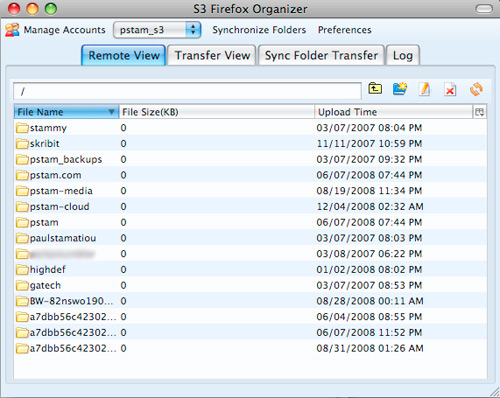
S3 Firefox Organizer buckets

To The Cloud!

Now that you have a bucket you want to associate with CloudFront (it will serve as the “origin”), you’ll need to get a CloudFront distribution up and running. You will need to come up with a DNS record CNAME you want to add to your domain that will be used as the URL to serve your newly CloudFronted files. For example, I added a CNAME record to be used with CloudFront on PaulStamatiou.com called turbo. With that, URLs for CloudFront files begin with this:

http://turbo.paulstamatiou.com/

Right-click the bucket you wish to use as the origin for your CloudFront distribution and select Manage Distributions. Fill out the desired CNAME (to be setup later) and click Create Distribution. This might take a few seconds and a refresh or two.

Amazon CloudFront with S3Fox

Adding a CNAME DNS Record

The last bit of the equation is to hit up your web hosting provider or whoever takes care of your DNS and create a CNAME record. For me, that is controlled by Media Temple Hosting. I logged into their account center and found what they call my domain’s zone file. I added a record, changed the value to CNAME and typed in the full URL including CNAME for the address name, in this case it was cache.skribit.com. For the data field, I entered in the cloudfront resource URL, which can be found from S3 Fox as shown in the image above. That was d27d77md6bgrrn.cloudfront.net. for me. Notice that I intentionally put a dot after the “.net” TLD. Some DNS services like the dot there, some don’t, so you’ll have to find out what the rules are for your particular DNS host.

Creating a DNS CNAME record for CloudFront

I had already lowered the TTL (Time To Live) value so once I saved the CNAME record it was live almost instantaneously.

Make It Public

We’re almost there. Now we need to upload some files to test it out and edit the Access Control List (ACL) to ensure that it is public and anyone online can view those files. Go back to S3Fox and browse to the bucket you tied to your CloudFront distribution. You can either edit the ACL on the bucket level and apply to subfolders so that everything is public, or you can do it on file or subfolder basis. I prefer the ease of making the entire bucket public.

Right-click on the bucket, select Edit ACL and check off the box under the Everyone row and Read column. Select Apply to subfolders and click Ok.

Edit ACL for S3 Bucket

Once you have uploaded some files to your S3/CloudFront bucket and ensured that the ACL allows public read access, try accessing the new CNAME. If you have a file called untitled.txt right inside the bucket, then your resource URL would be:

http://[CNAME].[DOMAIN].[TLD]/untitled.txt

If you receive some XML Access Denied error, then you need to go back to the ACL settings and double-check read access is enabled for everyone, or that you have the proper URL. If you don’t receive an XML error but instead receive a 404 and the URL redirects to the root domain, then your CNAME DNS record has not fully propagated yet so just give it some time.

Ready to Roll

So you’re all setup with CloudFront! One example use is hosting all of your WordPress images and javascript files on it. To make things easy and maintainable, I recommend keeping the same directory structure (wp-content/uploads, wp-content/themes, et cetera) in your S3/CloudFront bucket.

For Skribit, we plan on using CloudFront to serve the javascript files required for some of our widgets. That way the widgets load quickly regardless of the viewer’s location and websites using our widgets won’t experience downtime or sluggish loading times if anything happens to our server.

You can test the load times of your site or application with Pingdom’s Full Page Test to see how CloudFront has changed things. Keep in mind that it might take some time for the new files to get pushed to the CloudFront edge nodes.

Caveat Emptor

Now to get back to the drawbacks I briefly mentioned at the beginning of this article. One of the larger issues with serving files from your application server and from a CDN is that the CDN can’t process server-side files. I usually rename my javascript files to .js.php and add in some gzip compressing code at the top and bottom of the file to compress the file when served. Most people got around this issue in S3 by setting the Content-Encoding header to gzip via an S3 API call.

However, CloudFront does not currently automatically detect if a browser accepts gzip encoding. There are some technical ways around this, such as getting your application to detect if the browser accepts gzipped files and then serve the right file (compressed or uncompressed), both of which you have on CloudFront. This is a bit out of the way for some people like me, so I had to make the decision between serving files locally and compressed, or on CloudFront and uncompressed.
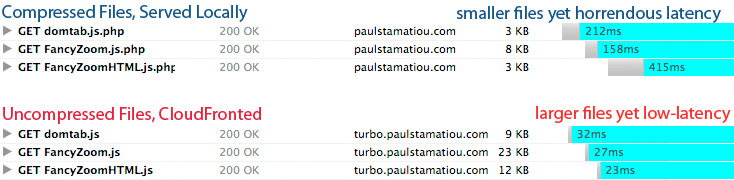
CloudFront vs Local Hosting with Uncompressed/Compressed JavaScript files
Tested via Firebug in Atlanta, GA (no CloudFront edge servers are actually in Atlanta).

To make myself clear, it is possible to serve compressed content from CloudFront, but not for the average, not-programmer user, so they will likely face the local & compressed versus cloudfront & uncompressed issue. If you want to look into serving compressed files through S3/CloudFront, take a look at the popular AWS::S3 Ruby library to write your own scripts and adjust things like the Content-Encoding and Cache-Control headers yourself.

The next issue with CloudFront deals with origin to edge server communication. CloudFront grabs files from the origin server (S3) when it sees a new file that the edge servers don’t yet have, but other than that it won’t necessarily update all edge servers the instant a file is modified (and retains the same name). It can take up to a day for all edge servers to have the same file. As Wayne Pan mentioned, the best solution is to version your files and give your application the logic it needs to be able to change the files it uses, rather than rely on the same file and same file name and have different CloudFront edge servers potentially serve up different versions of the same file.

CloudFront pulls from S3 only if the CF node doesn’t already have a local copy. This means that the only way to push out a new file is to change the filename. (style.v1.css, styles.v2.css, etc.) This means that your framework will have to take advantage of this. Without file versioning you’re at risk of serving stale files from different nodes on CloudFront.

Usage Reports

Wait a few days then login to your AWS account and download your CloudFront Usage Report. While Amazon doesn’t provide terribly detailed information through it, you will be able to see where people are accessing your files from. It’s a neat metric to look at, albeit Google Analytics does a better job of this.
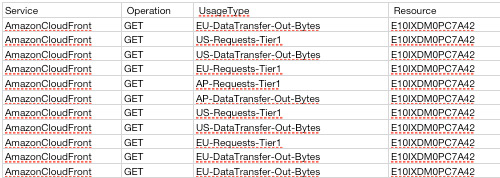
Amazon CloudFront Usage Reports

Shown above: data transfers from the United States, Europe and Asia Pacific.

Overall

I’m pretty happy with Amazon’s first CDN offering, CloudFront. It’s extremely easy to setup and affordable to boot. I was able to get it running from scratch in under 5 minutes, including CNAME DNS propagation. While it might not be mature enough yet with advanced usage reporting for companies to use in place of Akamai, Limelight or CacheFly, it certainly has potential.

Will you be incorporating Amazon CloudFront into your site or application?

Update: Commenter Brad Hanson cleared some things up:

Actually, Amazon does not automatically push your files out to the edge locations. A file only gets pushed to an edge location when someone requests the file and the edge does not have it. It then fetches it from S3 and all subsequent requests will be served directly from the edge.

File are guaranteed to stay in cache for 24 hours of inactivity, before being removed and being required to fetch from S3 again.

PaulStamatiou.com runs on the Thesis Theme for WordPress

How smart is your Theme?  How good is your support? Check out ThesisTheme for WordPress.

Thesis is the search engine optimized WordPress theme of choice for serious online publishers. If you’re a blogger who doesn’t understand a lot of PHP, Thesis will give a ton of functionality without having to alter any code. For the advanced, Thesis has incredible customization possibilities via Thesis hooks.

With so many design options, you can use the template over and over and never have it look like the same site. The theme is robust and flexible enough not only to accommodate a site like PaulStamatiou.com, but also to enable the site to run far more efficiently than it ever has before.

SEO Copywriting Made Simple
I used the Scribe WordPress plugin and service to optimize this blog post for SEO.

{ 7 trackbacks }

Marcyes / How To: Getting Started with Amazon CloudFront - PaulStamatiou.com
December 18, 2008 at 4:13 pm
Using Amazon S3 hosting with Wordpress
February 28, 2009 at 8:52 pm
Site Redesign: Everything’s Bigger In Texas Edition — PaulStamatiou.com
May 4, 2009 at 1:04 am
Video hosting costs? - NamePros.com
August 19, 2009 at 11:09 pm
Amazon Cloudfront CDN with a WordPress Blog
October 11, 2009 at 1:49 am
Skribit Blog » Blog Archive » Thoughts on a Successful Launch
December 22, 2009 at 6:28 pm
Usando Amazon S3 y CloudFront con WordPress, Carrero
January 5, 2010 at 6:23 am

{ 42 comments… read them below or add one }

1 Josh December 8, 2008 at 11:20 pm

great post! i’ll sure to reference this, if i ever use the service.

Reply

2 Julien December 9, 2008 at 1:20 am

Awesome article, I was looking for someone to give details whether or not it was a valuable “investment” (at least in terms of setup).

One last question though : it is common that web browser limit the number of HTTP requests thaat they do to the same server for one given page. Most “big” guys are “cheating” the browsers with assets server: asset1.bigguy.com asset2.bigguy.com. Is it possible to do something like this with Cloudfront?

Thanks a lot!

Reply

3 Mark Jaquith December 9, 2008 at 1:56 am

You say it can take up to 24 hours to propagate, but you got it running in 5 minutes. Did that 5 minutes include propagation? What happens if someone hits a file that’s not propagated for their local CroudFront center. Do they get a 404? How do you know when your files have propagated and it’s safe to link to them?

Reply

4 Tenny December 9, 2008 at 9:20 am

Paul, thanks for another great article! I always appreciate your insight.

Reply

5 Paul Stamatiou December 9, 2008 at 1:09 pm

“What happens if someone hits a file that’s not propagated for their local CroudFront center. Do they get a 404?”

It just gets served from S3, in my experience, and isn’t as fast as it could be but nothing that negatively affects user experience.

5 minutes included propagation, as I lowered the TTL to 300. When I said it takes up to 24 hours, I was referring to data being pushed from S3 to CloudFront edge servers, not for the DNS to propagate. Hope that clears some things up.

Reply

6 Brad Hanson December 9, 2008 at 4:45 pm

Actually, Amazon does not automatically push your files out to the edge locations. A file only gets pushed to an edge location when someone requests the file and the edge does not have it. It then fetches it from S3 and all subsequent requests will be served directly from the edge.

File are guaranteed to stay in cache for 24 hours of inactivity, before being removed and being required to fetch from S3 again.

Reply

7 Paul Stamatiou December 9, 2008 at 10:59 pm

Thanks for clearing things up Brad. I’ve updated the post.

Reply

8 Rick Mills December 10, 2008 at 5:58 am

Excellent post! :)

Reply

9 Chris Marshall December 10, 2008 at 8:43 am

I see that this is now announced as available in Europe as well, so maybe I will take a look at it :-)

Excellent post Paul!

Reply

10 Tim Linden December 10, 2008 at 9:41 pm

@Julien Yes it’s easy to add multiple CNAMES. I’m using the S3Fox plugin for FF so it’s just entering in more subdomains with a comma in between..

Reply

11 Dimos Alevizos December 15, 2008 at 5:08 am

There’s also simpleCDN’s S3+ service you could check out (http://www.simplecdn.com/solutions) which is much easier than amazon to setup and actually a bit cheaper and on par on features. Not something you would use if you wanted a big and professional CDN though, but then again cloudfront isn’t in that league either.

Reply

12 Julian Schrader December 27, 2008 at 5:12 am

Thanks for this post—I just set it up for me :-)

Reply

13 Serban January 19, 2009 at 5:35 am

Superb article. Worked instantly. Thanks a lot!

Note: the DNS modifications take some time to propagate (depends on the provider and your phisical location). I was able to access my uploaded files through a proxy in about 5 minutes after the CNAME DNS modification. It took 30 mins to see the newly created subdomain from my computer.

Reply

14 Andy February 2, 2009 at 3:38 am

Great post explaing how to configure Amazon CloudFront on Mac. If you are on Windows I would recommend our very own CloudBerry Explorer. It will help you to copy your video files to S3. It supports most of the Amazon S3 and CloudFront features and It is a FREEWARE

Reply

15 Trying to load XML into Flash March 11, 2009 at 7:30 pm

Has anyone run into trouble trying to load XML into a SWF all residing in a bucket?
What it amounts to is “access denied”.

Reply

16 Mike Brittain April 8, 2009 at 5:21 pm

Thanks for a great intro on CloudFront, which I have yet to test out. Today’s the day!

One thing I think you should add to this article is just a little more detail on the cache-control headers. Without them, end users will be stuck making multiple requests for the same files while surfing your site. I had this issue with serving files directly from S3 in the past. Sure, the CDN is going to deliver them more quickly, but it’s still not optimal and it’s also going to cost you more to send the same files to a single user over and over.

Reply

17 chiguy June 15, 2009 at 3:02 am

Thanks for the very informative post.

Can you please go into detail about how you actually integrate this with WordPress? For example, how do you handle photos that you upload for a post? Both future photos and photos that have already been uploaded. Is there a plugin? If you use mod_rewrite, what do the rules look like and so on.

Thanks.

Also you mentioned keeping the same file structure as in WordPress, but elsewhere you say that S3 has no concept of directories…

Reply

18 Paul Stamatiou June 15, 2009 at 10:10 am

“elsewhere you say that S3 has no concept of directories…”

This is true – the concept of directories in S3 is kind of a trick on the technical end. Programs that make “folders” are really just naming the file “foldername/file.txt” instead of placing “file.txt” inside of “foldername”. That’s just the technical details, you don’t really have to deal with anything like that.

As for how I integrate it – I currently just use CF for a few images here and there, such as static things like my logo and other images used on my site. I don’t use it for post images yet as there is no plugin I know of that can let you seamlessly upload to WordPress and do everything in the background and give you the proper image embed code. Sure there are plugins that let you upload and browse your S3/CF files but it’s not flawless – what if you ever decide to stop using CF and want all your images to be changed to WordPress-hosted ones?

(There is an S3 plugin for WP that does some of these things, and I have briefly used it, but I didn’t like it)

An ideal WP plugin to solve this issue for me would go through all old posts, upload images to S3/CF with the proper directory structure (wp-content/uploads/2009/06/…) and replace the image URLs and a href’s pointing to larger linked images in all posts with the proper S3/CF URL, and then from then on keep all images uploaded on both WP and S3/CF so the user could switch back to WP images if they wanted and have the plugin rewrite the URLs again. Of course, mod_rewrite rules could definitely be taken advantage of here for servers that support it.

long story short: i’m waiting

Reply

19 Antonio September 1, 2009 at 12:19 pm

Hello and thanks for the post!

I am also trying to configure S3 in Wordpress and as you say the plugins that we find out there don’t solve all the problems.

http://wordpress.org/extend/plugins/cdn-tools/
I cannot use this one because of some problems with my hosting but it says it upload the files to your hosting and also to S3 and use the ones that you choose. You cannot choose to wich bucket upload it to S3.

http://wordpress.org/extend/plugins/my-cdn/
only redirect

http://tantannoodles.com/toolkit/wordpress-s3/
It doesn’t upload files to your hosting and to S3. Furthermore I always get an error when cheking the virtual hosting option. If not checking it works perfectly but with the url http://yourbuckt.s3.amazon……/

The best I think we can do is to use the last one and then with this plugin
http://wordpress.org/extend/plugins/find-and-replacer/
modify all our internal image links to the new one. If we ever want to come back we modify it again…

But again, I believe some minor changes are needed to those plugins and they shouldn’t be a big issue… The most difficult is to make them work with S3 not to be able to set up the path we want WP to assign to the images.

BR

Reply

20 Andy June 15, 2009 at 3:21 am

There is a popular WordPress plug-in http://tantannoodles.com/toolkit/wordpress-s3/

If you want to protect your digital content on WordPress to authorized users only there is another WordPress plug-in

Reply

21 chiguy June 16, 2009 at 2:28 am

Cool. I also found this plugin:

http://swearingscience.com/cdn-tools/

But it looks like it doesn’t support cloudfront just yet…

Reply

22 Jason June 22, 2009 at 8:38 am

One last piece to the puzzle..

Cloudfront Analytics:
http://www.s3stat.com/

Gotta get that nightly stats fix!

Reply

23 Luke Rumley September 15, 2009 at 12:14 pm

Do I need a CNAME record for each bucket? It would be nice to use static.domain.com/bucket1 and static.domain.com/bucket2, but it sounds more like I will have to do staticbucket1.domain.com and staticbucket2.domain.com, right?

Reply

24 Paul Stamatiou September 15, 2009 at 12:17 pm

Hey Luke – yeah it is unfortunately a per-bucket type of thing to the best of my knowledge.

P.S. – I like you guys’ chairs. :D

Reply

25 Luke Rumley September 15, 2009 at 5:04 pm

Oh well – wondering if I should reorg my buckets into one now. We haven’t gone to production yet.

I like our chairs, too! Good for long hours of uploading content to S3. :)

Reply

26 rosie September 29, 2009 at 9:12 pm

Ok, I have done the S3 installation
Using the FireFox bucket
Uploaded AmazonS3 plugin by TanTan
Now, my task is to be able to make a 40 min video done by my husband available for viewing by anyone who pays for access. Do you think that Cloudfront is critical for me to use or can I achieve the same results with what I have done?
If yes, I will study this post again esp. regarding the file formations. I am a young baby boomer becoming more techi everyday and appreciate this post. As a matter of fact, I will boldly put this on one of my sites, http://www.bloggingforboomers.com for the super techi boomer readers of the site.
I think this is an excellent post and I really appreciate your sharing the expertise reflected in each line of text.
Keep up the great work Paul.

Reply

27 Paul Stamatiou September 29, 2009 at 9:27 pm

Hi Rosie – CloudFront does not sound critical for your situation, unless you expect lots of traffic from around the world rather than just the US? S3 by itself should be fine and gains of using CloudFront in terms of latency/time until the file starts loading is only counted in milliseconds (only important if you’re doing tons of simultaneous connections and have to serve lots of traffic)

Reply

28 Phil December 1, 2009 at 8:58 pm

I’m thinking about using CloudFront to serve my css and js files. My customers are hotel/resorts and their guests/users are scattered all over the world. My hope is that CloudFront might speed the page load (especially the HEAD) for many users.

Is it essential to create a CNAME that points to the CloudFront URL? Or can one just use the CloudFront URL? Thanks.

Reply

29 Andy December 2, 2009 at 5:10 am

I hope Paul will excuse me for answering that. It is not essential that you use CNAME. You can use regular CloudFront URL as well. CNAME will just make your URLs look nicer. Another benefit of using CNAME is if you decide to stop using CloudFront in the future you will not have to update all URLs on your website, but just change the CNAME.

Andy

Reply

30 Paul Stamatiou December 3, 2009 at 5:38 pm

Thanks for answering Andy! I was traveling the past few days so I appreciate the help.

Reply

31 Phil December 2, 2009 at 8:18 pm

A while back (8apr09), Mike Britain had mentioned cache-control headers. Would this apply to the HEAD?

I’m going to use CF to load a few HEAD files: css and js. If I exchange my CNAME for the old relative URL that points to these files, will the pages load and cache normally? For example, would my somewhat large jQuery file really have to reload from CF on every page of my site? Or will the pages cache normally? Thanks. And thanks for an exceedingly helpful guide/blog.

Reply

32 Phil December 2, 2009 at 11:34 pm

Plenty of relevant information here:

http://www.mnot.net/cache_docs/
and here: http://developer.yahoo.com/performance/rules.html

- but I am still not sure there really is any issue specific to CF.

Reply

33 Andy December 3, 2009 at 8:12 am

If you put css, js, images, etc on s3 (or CloudFront) and they have Cache-Control header, the files will be cached by the browser and/or proxy.

Reply

34 Phil January 5, 2010 at 12:02 am

All of the css, images and js files that I uploaded to S3 are “missing a cache expiration.” Where/how can I control or set the Cache-Control headers? Is this set in S3/Cloud? Or on my dedicated server? Or perhaps both?

Thanks and Happy New Year.

Reply

35 Andy January 5, 2010 at 4:21 am

Phil,
most of the Amazon S3 clients allow configuring Http Headers such as Cache-Control. You should set this header on the files on S3. What client do you use? Check out our blog post on setting content expiration.

Andy

36 Troy December 31, 2009 at 11:24 am

How do you stop directory snooping:

http://turbo.paulstamatiou.com/

Reply

37 Paul Stamatiou December 31, 2009 at 11:52 am

I had set the bucket to read access for World, you can just set it back to owner and it won’t display that. (as long as the files/folders you want to show inside of it have the proper ACL). If you refresh or shift+refresh that link you’ll see it’s back to the typical access denied message.

Reply

38 Brett February 12, 2010 at 4:19 am

Hey Paul just a heds up but the wordpress plugin W3 Total Cache has Cloudfront support built in so you can have your blog “in the cloud” in a few moments. If you need more info give me a shout. :)

Reply

39 Paul Stamatiou February 12, 2010 at 4:43 pm

thanks i’ll check it out. i’ve heard of the plugin but never really looked into it.

Reply

40 Brett February 12, 2010 at 4:58 pm

It beats the pants off my long time favorite, WP-Supercache!

Reply

Leave a Comment

You can use these HTML tags and attributes: <a href="" title=""> <abbr title=""> <acronym title=""> <b> <blockquote cite=""> <cite> <code> <del datetime=""> <em> <i> <q cite=""> <strike> <strong>

Previous post:

Next post: