While getting things settled down on my MacBook it became apparent that I did not want to rely on the calendar widget to find out the numeric date. I simply wanted to view the date alongside the time in the menu bar. Unfortunately this is not an option in OS X. However, with a slight of hand, you too can easily display the date in the OS X menu bar without the need of additional applications.
1) Open System Preferences by following Apple » System Preferences.
2) Under the Personal section, click on International.
3) Select the Formats tab and click on Customize under Dates.
4) OS X does not offer the date options under the Times section, so we can create the format we like in Dates, copy it, and paste it in the portion for customizing time. Select the dates format you want to start out with, such as Medium or Long and drag items from Date Elements to get your favored format. Highlight and copy this, then click Cancel.
5) Click Customize under the Times section. Select Medium from the drop-down menu and paste what you had copied in step 4 where you want it to appear.
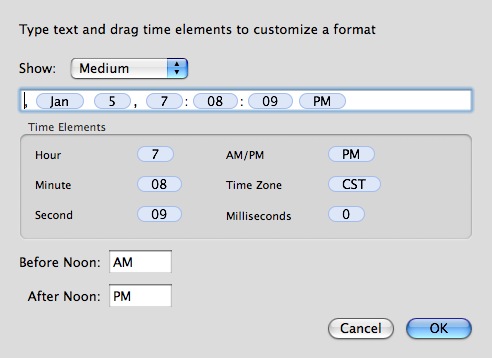
6) Click OK and glance at your menu bar to see the new format. You can go back and add spaces or other characters between elements as needed.

The final product.
7) You can further modify this by setting options in System Preferences » Date & Time » Clock. Options such as Show the day of the week and Show AM/PM are most likely what you would be interested in changing.
Note: This only works on OS X.4 Tiger and I have been using it for almost a year, on all of my macs and it has worked fine.
Tweet This
Stumble This


{ 13 trackbacks }
{ 107 comments… read them below or add one }
This is such a great tip.
I’ve had mine customized like this since seeing Amber MacArthur do this on Call For Help last year. It really grinds my gears to have to hover over a clock, or run a widget or calendar program just to find out the date and thanks to Apple I don’t have to.
More from author
i know this will just cause a firestorm of partisan comments, but i have been annoyed for about a year that i couldn’t get my mac to display the date on the top bar. this is of course easy to do on a PC and took me about 1 minute. but on my mac, it was seemingly impossible. so finally one day i had enough time to type in a search on the net, and i turned up a few hits. i tried following the first one, but it didn’t get me all the way there. then i followed the second, which was on this page. i followed this page and finally got my mac to show me the date after maybe 10 or 15 minutes. now i have what i wanted.
the discussions on both pages show that many people find this limitation annoying. but somehow, apple users find this arcane process affirms that apple/mac is wonderful. the mac interface is nice for many things, but it has its faults. i don’t understand why people can’t just admit that.
More from author
how is this even a tip? i mean the first time i used os x i figured this one out. i don’t mean to be rude, but if date was visible from the classic days it would def be available in X.
More from author
Followed directions to the ‘t’ but the menu bar clock has yet to display the changes. Argh. This would have been a handy touch to add to the menu bar.
More from author
I really like MenuCalendarClock, it shows a nice iCal style date and you can configure it however you want. I have option-c as a system wide shortcut to slide out full month view as well.
Tip: You need to turn off the OS date and time menu bar to get it set up nicely.
The free version does the job and the paid version adds some nice iCal integration :)
Good to know I’m not the only one with trouble remembering what day it is ;)
thanks for the menucalendarclock lead. exactly what i was looking for. the tip in this post didn’t work right for me either.
More from author
You can also rely on the dock-icon of iCalendar. It does show you the present date (i agree, not the month nor the year, but i suspect that you might already know those). I dont think that i will apply your trick (did not know, and yes it is helpful) because it will clog my menu bar (already clogged with growl, growl tunes, virtuedesktop, date, missing sync and a few others…). I thus completely rely on my trustworthhy iCal :-)
More from author
You can’t really rely on the iCal dock icon unless you check our calendar on a daily basis. The number on the icon does not update unless the applicaiton is started.
More from author
I to was unable to get this to work. I tried this tip exactly several times, but it didn’t work and then I tried messing around with it and it still hasn’t reflected the changes in the status bar. The only thing I haven’t done is restart (do I need to do that?). I would really like this to work. Thank you for the tip and (hopefully) the help.
I’ve been trying to figure out how to do that for days, since I got my MacBook Pro. Thanks for the tip!
More from author
from macosxhints forums
More from author
I had the same experience in Mac OS 10.5.6. I think the menu bar shows whatever is in the international formats settings under ‘times’ and under ‘long’. The sample output window shows a different choice (short/medium whatever) so the sample output in the date formats screen will not match what’s in the menu bar. I had the same bug with duplicated initial and final elements of the format string.
More from author
I can’t believe this has been buggy since 2006 and I am suffering the problem on a brand new MacBook in 2009. with 10.5.6. Come on Apple what are you doing!
You need to follow the instructions at the top of the page plus Paul’s additional instructions in this section. Chris is also correct, you can leave all the other fields (short, medium etc) blank, simply fill in the format you want in the “long” option under time and that is what will appear.
Thanks Paul-this is much better than hovering BUT come on Apple, three years to fix a bug like this is too long.
you’re a ^&$%#%$# genius! i can’t remember for how long i wanted to do this. tks!
that is so simple but I would have never thought of it. Thanks
I do that too. A colleague of mine puts an @ sign in to seperate the date from the time, but he also displays the seconds – which is just plain weird.
More from author
Very Cool – thanks!
More from author
Paul, thanks so much for getting back to me about that. I managed to get it working with that handy tip.
I noticed inside of iCal the events are changed to show the format you entered in the Times section.
More from author
I’ve seen this tip somewhere before http://creativebits.org/mac_os_x/date_and_time_in_the_menubar, and previous to that http://www.macosxhints.com/article.php?story=20050508000838365&query=menubar and if I remember correctly, the unfortunate part is that it changes the time format throughout your computer. In other words when you do a ‘Get Info’ on a file, or in iPhoto, etc. Great to see in the menu, but a mess in day-to-day use.
Paul Stamatiou, you rock my world.
I knew you were good for something.
More from author
This didn’t work for me until I realised I was changing the short display (which shows by default) instead of the medium one. This may be why it isn’t working for some people.
This was my problem… thanks!
Now the question is how to get the settings back to their defaults for the short, medium, and long
More from author
“Now the question is how to get the settings back to their defaults for the short, medium, and long”
Actually it’s pretty easy, just select “United States” (or whatever country you’re in) and it will set it back to the default.
More from author
Wow so easy. I don’t know why I didn’t pay attention to the drop down menu at the top of the preferences window. Although, my laziness did motivate me to try MenuCalendarClock iCal which does exactly what I need.
More from author
Man.. thanks a bunch! This rocks.
Paul Stamatiou – Thank you ! – You may not
be the first but this is where I caught it from.
Good to be able to drop MenuCalendarClock.
Should be easier and part of the OS.
Good tip – it worked. So silly that mac doesn’t just give you the option in the first place…why would you separate the date and time with an @ sign instead of a comma or a couple spaces?
why did apple just do a “show date” checkbox in the date and time control panel? this way it would be easier and intuitive.
Great tip! Works perfectly on my Macbook. Thanks so much. I just switched back the Mac after several years with Windows, where I was “hovering” as one poster says, to get the date. Great to have this in the menu bar. Agreed it’s ridiculous Apple doesn’t make this a clear option in the Sys Prefs.
Great tip, I’ve always wanted date at a glance. Only one problem if iCal is open when setting up the changes the day and week view loose their times. Closing and reopening iCal seems to have solved the problem.
I second this!!
“silvasonic
Jun 12th, 2006 at 12:00 am
you’re a ^&$%#%$# genius! i can’t remember for how long i wanted to do this. tks!”
Thank you tthank you thank you!!!
More from author
Man… Can not believe I just found this today. Nice job.
More from author
Cool, now I don’t have to click on the time to see the date. Thanks
Thanks so much – I’ve been wanting to know how to update the menu bar!!!
More from author
It didn’t work for me until I changed the Short ver. of the date, to Medium. As soon as I changed that, it showed the changes I made, in my menu bar.
Cool tip, never had time for these simple hacks…as an editor the mousing around for the date does add up.
Some users wished to display a little floating date box. In Tiger 10.4.8 (don’t know whether this is true for other versions), the Date and Time preference under the Clock tab, allows you to choose between displaying in the menu (the consideration of the article) or in a little floating window. The window is chock full of Macintoshy goodness: it is semi-transparent, displayed the date, time, calendar date, and day of the week, and can be moved anywhere you like.
For me (osX 10.4.6), I had to change the _long_ time format for the menu clock, while get info boxes and finder windows use the _short_. This might help some other people who were unsuccessful so far.
PS: The internal code that the os uses must be some simple characters, cuz typing letters into the box and hitting OK doesn’t preserve what I typed, but alters the various codes I dragged in.
I just tried this, and now my menu bar date reads:
Tue TueJanuary 16, 200712:15 PM
What did I do wrong, and how do I fix it, please?
Thank you.
feh. didn’t work for me until i tried the second, longer method…but even then, when i’ve deleted all the information in all the fields for both time and date, my menubar still says “Tue” (today is tuesday), and when i follow the directions i wind up with
Tue Tuesday, January 16, 2007, 5:11 PM
- with an unwanted “Tue” in the menubar and missing the seconds display i included in my customization.
it’s a nice idea…wish it worked correctly for me. :/
More from author
hey Owl, i found the solution to our problem: it’s in the Date & Time prefs pane. you can get rid of the extra “Tue” by going into Date & Time prefs, clicking the “Clock” tab, and unchecking “Show the day of the week.” i got my seconds display back by turning it on in Date & Time too. and as for the places in your display where there should be spaces, you need to go back into the International pane for that and simply insert spaces between the elements you want spaces between (it may look like there are spaces between the elements by default but there aren’t).
More from author
Still doesn’t work for me, and now it won’t show the seconds. If I ever figure out how to get the seconds back in the menu bar, I’m going to leave well enough alone.
aw, drag. sorry to hear that. not sure what to tell you then…except “good luck…”
More from author
THANK YOU!!!! I only needed to change the ‘long’ setting, left the other ones as was so iPhoto and so didn’t get messed up. What a wonderful tip!!!!!
More from author
oh wait, i have another idea: is it possible you dragged the “day” element into the work field twice and it doesn’t look like it now because it’s scrolled past the left end of the work field?
that’s the only other option i can think of.
putting the spaces in in the International pane worked though, right? it should…
More from author
interesting. for me, it’s changing the medium date format that makes the changes show in my menu bar. hmm.
More from author
This is the most elegant tip ever! Thanks.
More from author
Bravo from France…
A french review (MacBidouille) report an article from Scot Finnie an expert Windows who send to your site.
Thanks
Hey, thanks SO MUCH for this tip! I found it from the computer world article, and it is so cool. I’m sure that it will save me time and pain in the future.
My one comment is that you could use a • instead of a comma at the beginning of the chain, so that it reads: Fri • Jan 5, 8:54 PM. I suppose it’s personal preference, but I don’t like the extra space before the comma in the way that you proposed. (For the computer-challenged, you type option-8 to get the •.
Thanks so much again!
Paul, your the man, worked great!!
this does not work i have 10.4.8 tiger, i hope it work for you it would be nice to have the time and date on the title bar.
More from author
James – Try doing it again. I am in OS X.4.8 Tiger and it works flawlessly.
More from author
That’s a very cool tip!!!
FINALLY!!! THANK YOU!!!!!
This worked perfectly for me and then broke when updating to 10.4.8. I see above that it works for Paul under 10.4.8. Anyone have it break and then manage to fix it again? I’ve tried repeatedly, tried restarting, etc. I now end up with just what the Date & Time panel puts in there, and then my time zone “PST” which I can’t get rid of, but no date!!!
works great, had to use the long format. it baffles me why apple didn’t just have the elements availiable or have the same way of doing the format just in displaying the time in the menubar, thanks been wanting to do this for awhile
More from author
Thank you, pbmac! For some reason, using “Medium” format in the “Time” section worked the first time, but then broke under 10.4.8. I *thought* I had tried every combination to get it back, but I guess I missed that one. Now, using the “Long” format in the “Time” section worked like a charm. If anyone has this problem under 10.4.8, give this a try!
I actually did this on my last Mac and had the problem mentioned above, that it changed all my formats everywhere throughout my system and became a real pain in other programs like Excel and iPhoto. Anyone find any solution to this?
Since you guys are such a fount of information, anyone know if there are mods that would allow me to customize the floating date/time display? My menu bar space is precious but I find the floating version just a wee bit too big, too.
I swear I’m not usually this picky.
Hey, I was able to make the date appear on the menu bar, but now in all of my Finder folders, the “date modified” or “date created” column formats all screwed up with the custom fields. Those columns are kind of important to find when you wrote certain documents.
Is there any way to get the date to appear on the menu bar without changing these formats?
what a pain in the ass….but I got it to work
There is something CLEARLY missing in the instrux for this hack. Works for some, not for others. Who has the panacea procedure? I can’t get it to work, and being a hack nut, I’m baffled at how something so simple can turn out to be so confounding?!?!?!?
wow! i always wanted to kno how to do this! thx!
“Is there any way to get the date to appear on the menu bar without changing these formats?”
Download and install MagiCal.
http://www.charcoaldesign.co.uk/magical
Excellent, very well done!
Chris Allen and others who suggested changing the medium or long formats rather than the short: Thanks 1,000,000. That did the trick for me.
I just did a full erase and install on my mac and I’ve been transferring preference files all day. I was looking to transfer the one for this, and I found one called “com.apple.menubarclock.plist”, which seems like it would do the trick, but it doesn’t work.
Do you know where the preference file for this is?
More from author
Ok, So I just tested this with OS X 10.5 Build 9A377a and it works like a charm.
More from author
I thought this was a great hack and I’ve done it: I get day, date and time but some curious things are happening. Different portions of the menu bar blue out and SpellCatcher vanishes. Did I do something wrong?
this worked great on a Mac Book. Followed directions first time and had no problems. Here’s what I did:
- click “customize” under dates
- choose medium
- select all text (click and drag) and copied with cmnd-c, hit cancel since I didn’t modify anything
- click “customize” under times
- choose medium
- clicked at the front of the line and pasted it with cmnd-v
- removed year and such so it just says “(Jan) (5) – (7):(08):(09) (PM)” (The ()s are the elements in it”
- hit “OK”
It took 30 seconds or so before it showed up, maybe it had to wait till next minute but now it shows up in bar as “Thu May 10 – 10:09 AM” Been using a mac for 3 years and this always annoyed me and never thought to check this.
Excellent tip, share with your friends and Apple!
Thanks! I read another tutorial that didn’t indicate to change the format of the time in “Medium”… argh…
Thank you very much for your help, I’ve been trying to figure out how to put the date in the menu bar for weeks!
More from author
Many thanks. I have owned 3 Macs for over three years – and have NEVER figured it out! No more hovering.
Thank you for the cool tip.
My thanks and appreciation.
Absolutely amazing – this is a truly useful tip!
Wow. Thank you so much!
I did not think my Menu Bar could get any better.
More from author
VERY NICE TIP – YOU ROCK!
I have 10.4 and can’t make it work. Tried several times……followed the directions carefully.
Any other suggestions?
Thank you! it looks beautiful now
Fantastic! Thanks. very clear instructions
More from author
This is superb, thank you for showing how this can be done.
More from author
Thanks for a great tip!
This tip rocks, not sure why these options aren’t made more obvious – Would have saved a bunch of time trying to figure out what the date is when I’m making revisions to artwork
More from author
Craig had the goods – I vote for Magical too!
This works in Leopard too!!!
That’s great, I’ve been trying to get that to work forever. Even installed Statoo just to have my date displayed. Thanks for this help!
And now for Leopard… ? I have to be honest and say I am a little surprised they have STILL not allowed us to display the date in the menu bar… Geeezzzz come on Apple :-(
nice job. thank you very much – works great!
Thanks – been wondering how to do that !
This was working for me but does not seem to work anymore w/ the latest updates from Apple. Did you see this problem too?
More from author
This is a very smart tip and very useful to show Date and Time in the menu bar!
Can’t figure out why the default setting for Tiger/Leopard is so uninteresting and needs user customization such as turn on Dock’s Icon Magnification, Finder Window’s Useful Toolbar, this manual set up to show Date in Menu Bar, manually turn on Secondary + Third Button, Scroll Button for connected Mighty Mouse and many more which is silly!
They should have understand what a computer user wants/uses nowadays by offering so much features in Operating System after R&D but not well set up as the default setting when the user first glance or being introduced.
Bad selling point, and many users don’t have time to google 20 pages to get into reading such good and useful tips. Users nowadays usually use what they were being introduced and set up.
More from author
Thanks so much for this – I now have my Menu Bar showing Thursday, 03 April 23:37:17 (I can still remember which year it is)! I’m running OS X 10.5.2 on a G5 iMac
Cheers
Tricia
Excellent! Worked like a charm.
More from author
Awesome… Thank you!
thanks! I’m new to macs–and the lack of a visible date was driving me crazy. this is a great tip! thanks, again!
Thanks for the help – this article was exactly what I wanted to do!
More from author
It works ! Greats !
Thanks! Although it has already been over two years since you posted this, it just helped me solve a minor annoyance after having bought an Apple laptop yesterday.
For those of us who just started using a MAC…this was a great post …it worked like a charm
Also works for Leopard.
Here’s the problem: this changes EVERY Apple time display, including the time in the iCal calendar app (in fact, it breaks iCal so it no longer can show times).
In some ways Apple works like a dream, in many other ways it is total crap, just like windows… and the real bonus is the total f.sc.st like adherance one company one product one licence no open source… look at the latest shuffle and try and get a 3rd party head set… So now to the point, I think the best proof that there is still SO much room for improvement is THIS silly issue… why on EARTH it is so difficult to just so the time and date together like any other computer, phone, microwave, heating system, car, etcetcetc shows…
Thank you so much for this hint…
Thanks for the help! Very simple, and it’s a lot nicer to be able to see the date without needing to click on the menu bar.