Twitter: watching the Machinist, at least until i fall asleep
Subscribe via RSS or email  #7,120


How To: Change Leopard’s Login Wallpaper

Oct 31, 2007 in , , ,

From the not-sure-how-useful-this-is department comes a simple method of changing the default desktop wallpaper shown when logging into OS X Leopard if space and stars aren’t your cup o’ tea. All you need to do is replace the file DefaultDesktop.jpg located in /System/Library/CoreServices/DefaultDesktop.jpg. Since this is part of the System, you’ll need administrative privileges to change the image.

Open up the Terminal in Applications » Utilities and type in the following:

cd /System/Library/CoreServices
sudo mv DefaultDesktop.jpg DefaultDesktop_org.jpg
sudo cp /Path/to/picture/you/want/to/use/image.jpg DefaultDesktop.jpg

After the first “sudo” command, you will be asked for your password. For the last line, instead of manually typing in the path of the image you want to use, you can just drag it into the Terminal. If you were to browse to the CoreServices directory in Finder after you did this, you’d see something like this showing the new image and the renamed old one.
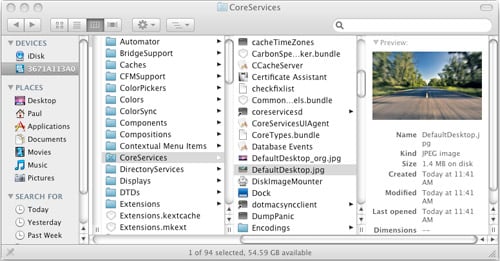
Leopard Login DefaultDesktop in Finder

and here are the fruits of your labor, a customized login wallpaper:
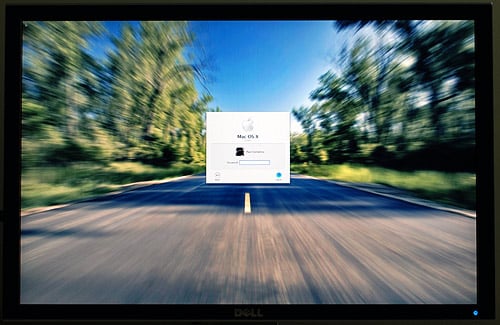
Leopard Login Wallpaper

Alternatively, you may opt to go the “proper” route and add an entry into the appropriate plist file with (below is all one line to be run in Terminal):

sudo defaults write /Library/Preferences/com.apple.loginwindow DesktopPicture "/Path/to/picture/you/want/to/use/image.jpg"
No one has saved this post on del.icio.us. Why not bookmark it?


38 Comments

  1. That’s a pretty picture you got there! Where did you get it from?

  2. Yes, Second that, please share that gorgeous wallpaper Paul!

  3. Nice. I also use the “_org” suffix.

  4. it appears to be a more saturated (?) version of this interfacelift photo:
    http://interfacelift.com/wallpaper/details.php?id=1387

  5. thanks paul was wondering how to fix that. just got a new mac mini today and have been playing with leopard since. nice os although still not sure about stacks and new default folder icons.

  6. This is one of the first things I did once I got my Leopard install up and running. However, I did it strictly with the Finder instead of using Terminal and Unix commands. Your method actually seems easier.

  7. Yes, do share the wallpaper ;)

  8. @Tureis - you’re correct. I took it into Photoshop and added some color to it. ;-)

  9. Or just use this program to change the login screen background:

    http://www.macupdate.com/info.php/id/26083/login-back

  10. You probably know this already Paul, but I just noticed that the extension of the file must be .jpg; I realized this after attempting with a .png. Just in case anyone was going nuts wondering why it wasn’t working.

  11. So I tried this and somehow screwed it up. Now I have a solid blue background on my login page. Is there anyway to reverse what I did?

    Brandon Wigboldy on Nov 9th, 2007 at 12:28 am
  12. I also have the solid blue background, Brandon, even without making any changes. (At least if I made any changes, they were not deliberate, and sure did not involve use of the terminal.)

  13. So does anyone have any suggestions on how to fix this problem?

    Brandon Wigboldy on Nov 10th, 2007 at 2:52 am
  14. @ Brandon & Bruce,
    Read my previous comment.

  15. @Ruddy, I re-read your comment and do not see the applicability to my situation: I have not touched the DefaultDesktop.jpg file, and it is indeed labeled with a jpg extension in my CoreServices directory.

  16. I also was using a jpg

    Brandon Wigboldy on Nov 10th, 2007 at 8:46 pm
  17. Hey, thanks for the great hint. I actually got it to work by just getting an image I liked, named it DesktopDefault.jpg and dropped into the CoreServices Folder. It gave me the option to authenticate, which i did, and then asked for my password. I logged out and there it was. you don’t think that hurt anything, do you?

    Tim

  18. @Brandon,

    Just curious if you are using a BootCamp partition. I am and if you are also, that could mean that this plays a part in our ‘temporary BSOD” at startup. I do know it is annoying and I have not thought of any other possible causes.

  19. Bruce and Brandon, you might look at the image permissions. The login screen has to be available to _any_ user, so if the image is in a protected directory or has permissions specific to you, then it isn’t available to display on the login screen. When I first tried the ‘defaults write…’ method, I pointed at an image in my photos directory (protected by file vault). When I moved the same image to the /Users/Shared/ directory, everything worked just fine.

  20. @johnmichael, I appreciate the help much. I did not do the trick for me, though, so I am really mystified. I am almost tempted to do a clean install. I went the upgrade route and wonder if there is some holdover material that is interfering with a normal startup. I do know my startup is much slower than it used to be. I have gone on a cleaning and reorganizing binge trying to find the cause, but to no avail. Thanks for the tip, though. The fact that it does not work for me makes me know something else is going on.

  21. @johnmichael,

    To make a correction to my previous entry, what you suggested did succeed in giving a different wallpaper … just not anything at login. For login, all I get is a blue screen. A puzzle.

    Thank you, though.

  22. The replacement .jpg must be 72 dpi for this tip to work, otherwise you just get a blue screen.

  23. useful blog, thanks. went with the dell display huh?

  24. i had the same blue screen issue and had saved the original background in iphoto. when i pulled it back into core services, lo, i still had a blue screen. i poked around in ‘get info’, unlocked at the bottom, then allowed read access to ‘everybody’. that worked so i did the same to the jpg i wanted to use, drug it in, and now it works too. thanks so much for this post and i hoped i helped… that login screen was cheezilla.

  25. is there anyway you could upload this version of the wallpaper ? i’d really like to make it my permanent wallpaper for the desktop…or if you could just e-mail it to me, i’d be greatly appreciative.

  26. I have a directory that I save all my favorite wallpapers to, most of which are from Mandolux.
    http://mandolux.freerobotsex.com/archive/2008/0301.html

    So I created a script…

    #!/bin/bash
    declare -a files
    let count=0
    IFS=$'\n'
    for i in `find -E /Users/dturner/Pictures/Wallpaper/mandolux -iregex ". \/[^\.][^\/] \.(jpg|jpeg)$"` ; do
    files[$count]=$i
    ((count ))
    done
    N=${#files[@]}
    ((N=RANDOM%N))
    randomfile=${files[$N]}
    cp "$randomfile" /System/Library/CoreServices/DefaultDesktop.jpg

    Then in Terminal I entered:
    sudo edit /etc/crontab

    And added a line so it looks like:

    # The periodic and atrun jobs have moved to launchd jobs
    # See /System/Library/LaunchDaemons
    #
    # minute hour mday month wday who command
    * */1 * * * root /Users/dturner/scripts/new_login_wallpaper 2>&1 /dev/null

    …Now my default login background changes every hour!

  27. Mac Leopard - Having successfully altered the default wallpaper, I now find I have the original “astrophysical’ wall paper on my attached remote screen. Any idea where i need to look to change this too? Thanks Kevin

  28. I could be wrong, but if you use the

    sudo defaults write /Library/Preferences/com.apple.loginwindow DesktopPicture “/Path/to/picture/you/want/to/use/image.jpg”

    approach, I think that path has to be a file in the root system. I tried it to a picture in my /Users/myhome dir and it didn’t work until I moved it to a file outside my home. (I just put it in /System/Library/CoreService )

    I’m probably wrong, but no clue why it didn’t work to the file in my home dir (I don’t think I had the path wrong either.)

  29. Guys I tried changing my login screen and I actually did change it….but as a result the computer took alot more time than usual to load the login screen as well it was extremely pitifully slow! Oh and btw im using a macbook pro 15 inch 2 GB ram 2.2GHz.

  30. On my mac, my background became blue!
    And now? i wanna restore.
    How can i do that?

  31. Joao, make sure the picture you selected is in shared folder because if your account is set to private and the picture that you selected is in your account, other users would not be able to see it hence you will just be left with a blue screen. So go to your HD>users>shared and put that picture in shared folder then set it using this program and you will be good to go!

    Fahad

  32. ATTENTION ALL BLUE SCREENERS:
    I had this problem for ages where the logiin background wouldn’t change form a dull blue screen. Then, i downloaded Login Back application from off the apple site. I think it is mentioned above. It is much better than using desktop2login or anything else. But the main reason i am posting because it solves blue screen.
    Thanks to whoever posted it near the top

  33. Smally, I just tried that app and am still stuck with a blue login as I have been for months now. I guess I am getting used to it but it still bugs me.

    Brandon Wigboldy on Jun 27th, 2008 at 1:01 am
  1. [...] Leopard’s login wallpaper is not that cool, but I’m OK with it for now. If you don’t like it, here is How To Change Leopard’s Login Wallpaper. [...]

Post a comment, receive Stammy points.


Send a trackback.


  • If you plan on posting code, run it through Postable first.
Copyright © 2005 - 2008 PaulStamatiou.com  Privacy Policy - Terms of Service Can't spell my name? Use PSTAM.com. Go back up ↑.