How To: Optimize Your Site with Image Sprites
With my last few posts on website optimization, one of the larger areas of focus was reducing HTTP requests. By reducing the number of requests your browser must make to retrieve all of your website, you speed up your site’s loading time with less overall HTTP latency for requests. If you want a good analogy for this method of site optimization, think of hard drive file transfers. Copying 1,000 files in the kB range will take longer than copying a single gigabyte file because starting and stopping 1,000 tiny transfers is more work than just doing a few large ones.
Using image sprites is sort of a last resort after you have done as much as you can with other optimization techniques. A sprite is an image that has all of your other images inside of it, so if your sprite has 10 images, you’d be getting rid of 9 HTTP requests and speeding your site’s loading time up by the time for each of those 9 requests’ latency. That and there are issues like server overhead for each HTTP request, which has to be served by an Apache child that can take up 20MB of server RAM. You’re better off helping your server process less HTTP requests, off-loading media to Amazon S3, et cetera.
Image sprites are used in conjunction with CSS to determine which part of the image sprite will be displayed. Below are two image sprites - one from Google and one from me.

Creating the Sprite
Following the examples above, round up all of the frequently used images on your website - images like your logo, RSS icon and others that aren’t often changed. Place them in a single image in Photoshop or your image editing tool of choice. You can put them as close together as you’d like but it is easier to select them in the next step when they are slightly spaced out. Save the image.
Writing the CSS
With image sprites, you will have CSS selectors for each link that display only a portion of the image sprite - effectively showing just the image you need. You need to find out the exact size and position of the image you wish to display. Do this by using the Slice tool in Photoshop and selecting one of the images you want to use. Right-click on the new slice and select Edit Slice Options. This will bring up a window with the location and dimensions of the image.
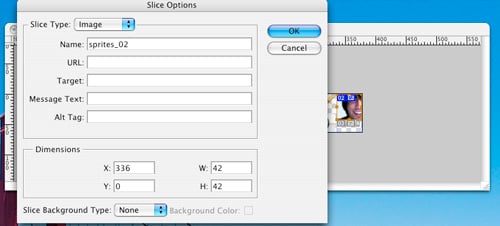
In this case, the image I want to use in my sprite is 42×42 pixels, has a 336px offset and starts from the top of the image. This corresponds to the following CSS:
background:#fff url(path/to/sprites.png) -336px 0 no-repeat;
display:block;
height:42px;
width:42px;
text-indent:-9999px;
overflow:hidden;
}
The CSS selector applies to the links with class=”stammy” set. The background attribute loads the sprite and then sets the background position to 336 pixels over - it must be negative. If the image was 10 pixels from the top of the image, the background position would be “-336px -10px”. The width and height attributes are then set in the CSS. I also included the hover pseudoclass since I had a problem that when I hovered over links with this class, they would turn the color of my link hover state, making the background image disappear.
Setting overflow hidden “fixes the annoyance of when you select the text you’ve replaced the highlighting stretches all the way to the left side of the screen” as stated by Rob.
Do this for every other image in your sprite, using different names for each selector.
Writing the XHTML
By now you should have quite a few CSS selectors for each image sprite. You’ve already done the hard parts and you’re on the home stretch. All you need to do know is create links with the class for each corresponding CSS selector. Here’s what the link for my “stammy” selector (the image is my mug shot) looks like:
Simple enough eh? Setting the class combines the image sprite info from the CSS with the link, showing only that region of the sprite. However, since we are not even using an img tag, we can’t set an alt attribute, which is vital for mobile visitors, search engines, screen readers and the like. By putting text inside of the link and moving it off the screen with text-indent in CSS, you get the benefit of usability without having the text overlay on top of the image.
In a Nutshell
- Too many HTTP requests are bad.
- Using too many images adds to that problem.
- Image sprites can help.
- Image sprites are easy to implement and big companies like Google have been using them to save bandwidth for years.


More food for thought - thanks. I think I need to look at all this for my own site sooner rather than later, which is somewhat daunting!
Good idea Paul - and another well-written guide. :)
I’m in the process of planning a redesign for both my sites at the moment, so I’ll probably end up using this.
Really digging these optimization posts, never would’ve thought of this stuff.
This is a very interesting guide, nice job.
I usually end up doing this for background icons and such but then you end up having to use a really wide or long image to make sure it doesn’t repeat again.
This is really awesome. I never really thought of it. I might integrate it into the WP theme I am slowly working on.
For what it’s worth Paul, you don’t need that div tag inside the link. You can put the text-indent in the link CSS.
Thanks for writing about this in such an easy to understand way.
nice writeup. this definitely is a great way to save some bandwidth and is quick and easy to implement
This is really useful on huge sites or blogs with a lot of daily visits, this small changes will show up some great results :)
Then creating a blog template with a lot of icons and stuff like that this is awesome, saves lots of requests.
Good Post
@Josh P - thanks!
Paul, glad you got this working correctly… fun times last weekend, glad you could come out.
Thnx very useful.
This is a MUST for creating image rollover effects, as it completely eliminates the delay. See the tabs at my personal blog for an example.
What would be amazing is a tool that slurps up a bunch of images, combines them, and gives you the CSS to pick out the individual images. The only problem with CSS sprites is that it’s a lot of work.
Paul, I was just thinking, all your website performance stuff is great, but is there any tangible benefit to doing any of it? I’d be interested if you know of any scientific studies that show that doing optimizations like compressing css and using image sprites lead to more traffic because visitors liked the responsiveness. Or do you do all this stuff more to conserve bandwidth?
@Andrew - I do this because I love speed! There is a study, however, stating that if your site doesn’t load within 4 seconds, people will leave.
More importantly, with these optimizations, I am prepared for high-levels of traffic and can handle many thousand hits the next time I get dugg or what have you.
Paul,
If you use the text-indent: -9999px trick you should also add overflow: hidden
overflow: hidden fixes the annoyance of when you select the text you’ve replaced the highlighting stretches all the way to the left side of the screen.
Agreed w/ Josh — The div isn’t needed, especially w/ inline style.
@Rob: don’t use “overflow:hidden;” for this removing the link border that appears onclick … there’s actually a CSS property for the expressed purpose of control this border: outline. Simply do “outline:0;” and no nasty border that stretches off screen. The problem with “overflow:hidden;” is that while it may work, it adds extra styling (namely hiding overflow) which is unnecessary and possibly even problematic depending on what you’re trying to accomplish.
@Rob: okay, so I apparently can’t read. You were talking about something different, but heck, outline:0; is a good thing to add into the mix if you’re using negative text-indent on a link, regardless.
Nice write-up, Paul.
I wrote about this topic a while back and have some explanation on packet sizes, http requests and optimizing if yer interested:
http://www.fiftyfoureleven.com/weblog/web-development/css/css-sprites-images-optimization
The interesting thing is that, in the past, people would advocate splitting images into several pieces so that they would load in parallel (faster)… ^_^
Paul,
Any idea if there are browsers that do not support CSS code for sprite images or mobile browser that will render the image incorrectly?
Hey Paul,
‘just had a quick question about your webhosting… thought it was sort of relevant to this post.
I’m having a terrible time deciding where to host the blog I’m making for my around-the-world-trip. I’m obsessed with having a fast loading page, but at the same time I’m not expecting a considerable amount of traffic. Unless for some reason people start to care about my trip, ha ha.
Is shelling out the extra $10 / month for hosting like media temple worth it?
Cheers dude,
Jeremy
@Jeremy - honestly, it’s up to you. I’ve pretty much only used (mt) and have had a good experience with great service. You could always pickup a really cheap/crappy webhost and host images on Amazon S3 so they’d be fast and all, but that seems like another step between you and your readers.
Thanks Paul!
Thanks Paul, I’ll be sure to do this in my next re-design! Thanks again!
I have been experimenting with Sprites for a while, haven’t implemented them yet. I really want to start using Amazon S3 like you said to save on speed. Great article!