File Juicer Has Your Back
Earlier this week while working on a group project with a server we all shared, a relatively large CSS file was accidentally overwritten. We had been coding non-stop for a few days and hadn’t backed anything up. It would have been a major setback considering our project was due soon. Fortunately after a few minutes of ferocious searching, I came up with a few possible paths to remedy this situation.
First off, it’s important to note that I had visited the site we were developing in both Firefox and Safari previously so both should have the CSS file in the cache. My first tactic was to tinker around with Firefox’s about:cache address bar command. With that I was able to find a list of all the cached files Firefox had, and even saw the file I was looking for. Unfortunately, I could not find an actual way to get that file out. Delving into the folder where Firefox’s cache is stored only turns up proprietary cache files.
Abandoning the Firefox method, I started looking at where Safari stores its cache files. Unfortunately they were also in a proprietary format, *.cache. It started to seem like I might as well just start rewriting the CSS file - then I found File Juicer. File Juicer is a shareware OS X application that does many things - including restoring files from browser caches. It supports Safari, Camino, Firefox and Mozilla - maybe even more but those are just the browsers installed on my machine.
All you need to do to run File Juicer is execute File » Browser Cache » <browser>. After a few seconds for processing these files, File Juicer presents you with a “Juice” folder with each file from the browser cache organized by file type.
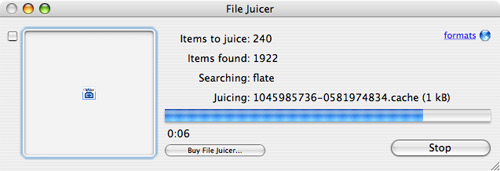

The next time you have one of those “oh shit” moments with web development, keep File Juicer in mind. Of course, if you happen to lose or overwrite a file processed on the server-side, like PHP, you’re out of luck.


Juicer saved my ass for real earlier this year — but I’d already forgotten which app it was. Thanks.
Thanks for sharing this. When I do have one of those “oh shit” moments, now I know where to look. :)
That’s a pretty neat feature, but after doing this once and having to restart from scratch, I’ve learnt my lesson. Backup, backup, and backup!
that frantic googling sure is fun, eh? :) Thanks for the link.
Or you can just use SVN…
@Michael - and when you’re using a locked-down school server with almost no amenities?
Too bad Leopard isn’t out yet with it’s Wayback machine, eh?
I don’t think Wayback would have helped in this case - it was on the server… unless, oh yes, Leopard servers with Wayback. =)
Do like we do over at Devskunk.
We run SVN on our own development machine, then cut over once the entire site is done. This is an awesome solution for many reasons…
We often need root access to install python libraries, modify system configurations, not to mention restart apache constantly (we should be running single threaded, but our dev server also happens to be a production environment).
When we want to cross over, its simply a matter of getting the essential software running on the server, configuring the database, and then using svn to checkout the codebase onto the server. This makes updates incredibly simple as well.
Also, using SVN (this is the bit that pertains to the article) you never need to worry about losing files. SVN takes care of all revision control for you.
My final praise for SVN is the fact that all of us can work remotely and simultaneously, and checkin our code at any time. While i’m at school without wifi I run an exact copy of our recent project so it’s like carrying our dev server wherever I go.
OOps one more… no more FTP! I love Transmit, but it isn’t the most efficient method. For all sites that I have worked on prior to SchoolRack (Groovr, Kindfish, Whalesalad) I have used a combination of TextMate and Transmit. Coda somewhat solves this problem, but Coda is also a bloated application.
Bottom line is… SVN!!!! Get a dev box running it and then copy all your stuff to the “locked down” machine in the end!
I’m surprised you couldn’t get it directly from the Firefox cache. I just checked to verify (on Windows rather than a Mac, but Firefox should behave the same), and the about:cache window provides that functionality.
Each file on the list has a link which displays the original web address but is actually linked into the cache. So you can simply right-click the one you want, and “Save Link As…” . The file is taken from the cache, not the original website.